Connecting a data source
To pull content from WordPress, Strapi, or any GraphQL API into Silex, you need to add a data source. This page walks through the settings dialog.
Opening data source settings
In the Silex editor:
- Open the Settings panel (usually on the left sidebar or top menu)
- Look for Data Sources or CMS section
- Click Add Data Source or the plus button
A dialog opens with fields for the API connection.
Filling in the basics
Label — A name for this data source (e.g., "My WordPress Site"). This is only for you in the editor; users never see it.
URL — The GraphQL endpoint. Examples:
- WordPress:
https://yoursite.com/graphql - Strapi:
https://yoursite.com/graphql - Supabase:
https://yourproject.supabase.co/graphql/v1
Check your API provider's documentation for the exact endpoint URL.
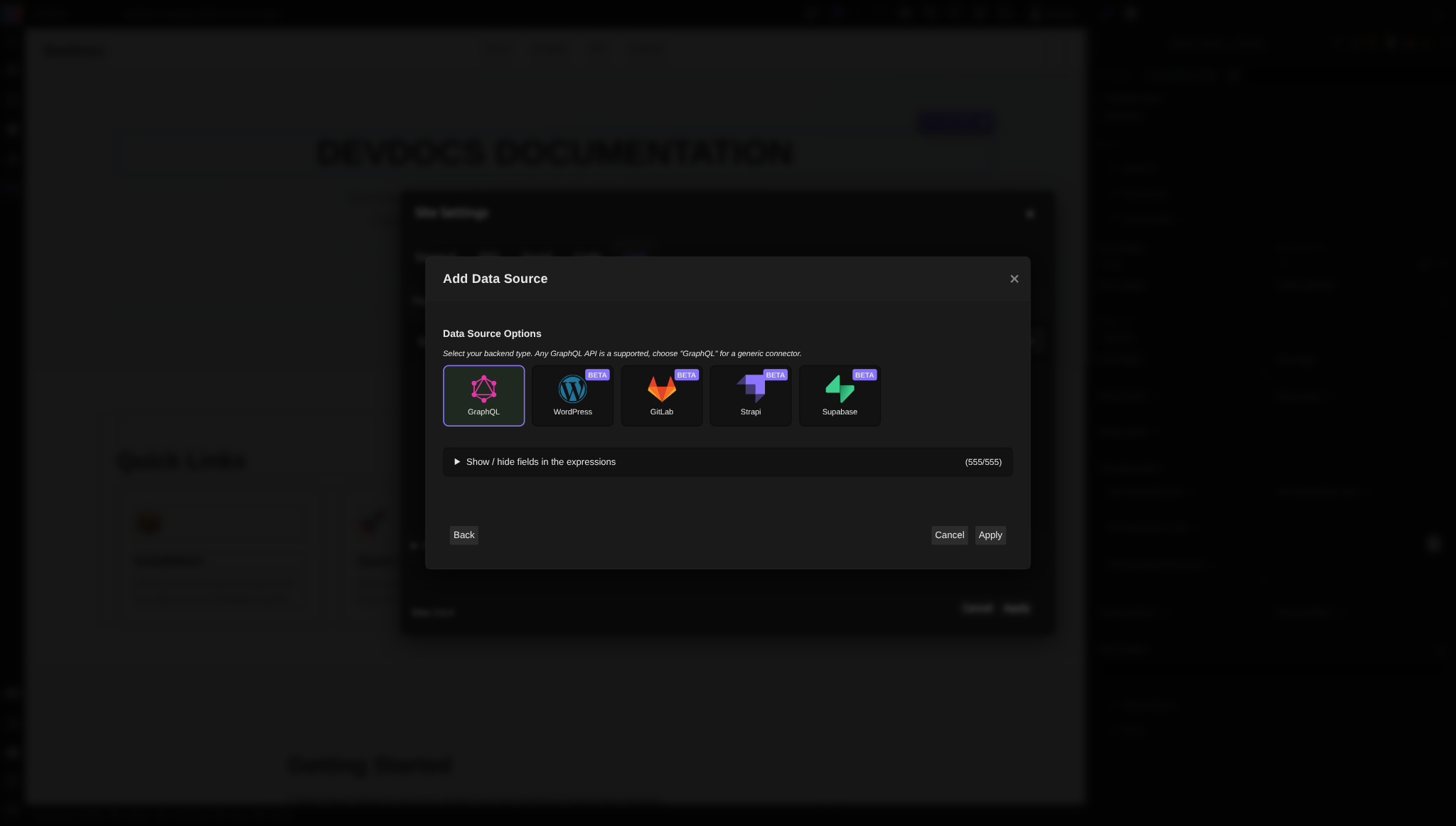
Backend type — Select which platform you're connecting to:
- WordPress — optimizes for WordPress/WPGraphQL structure
- Strapi — optimizes for Strapi
- Supabase — optimizes for Supabase
- Generic — for any other GraphQL API
This selection helps Silex provide smart defaults and better type hints. If your API isn't in the list, choose Generic.
Adding authentication headers (if needed)
Some APIs require authentication. If your API is password-protected or requires an API key:
- In the data source dialog, look for Headers or Authentication
- Click Add Header
- Enter the header name (usually
Authorization) - Enter the header value (usually a token or API key)
Example for WordPress with private content:
Ask your WordPress admin or API provider for the correct header format.
Testing the connection
After filling in the URL and headers:
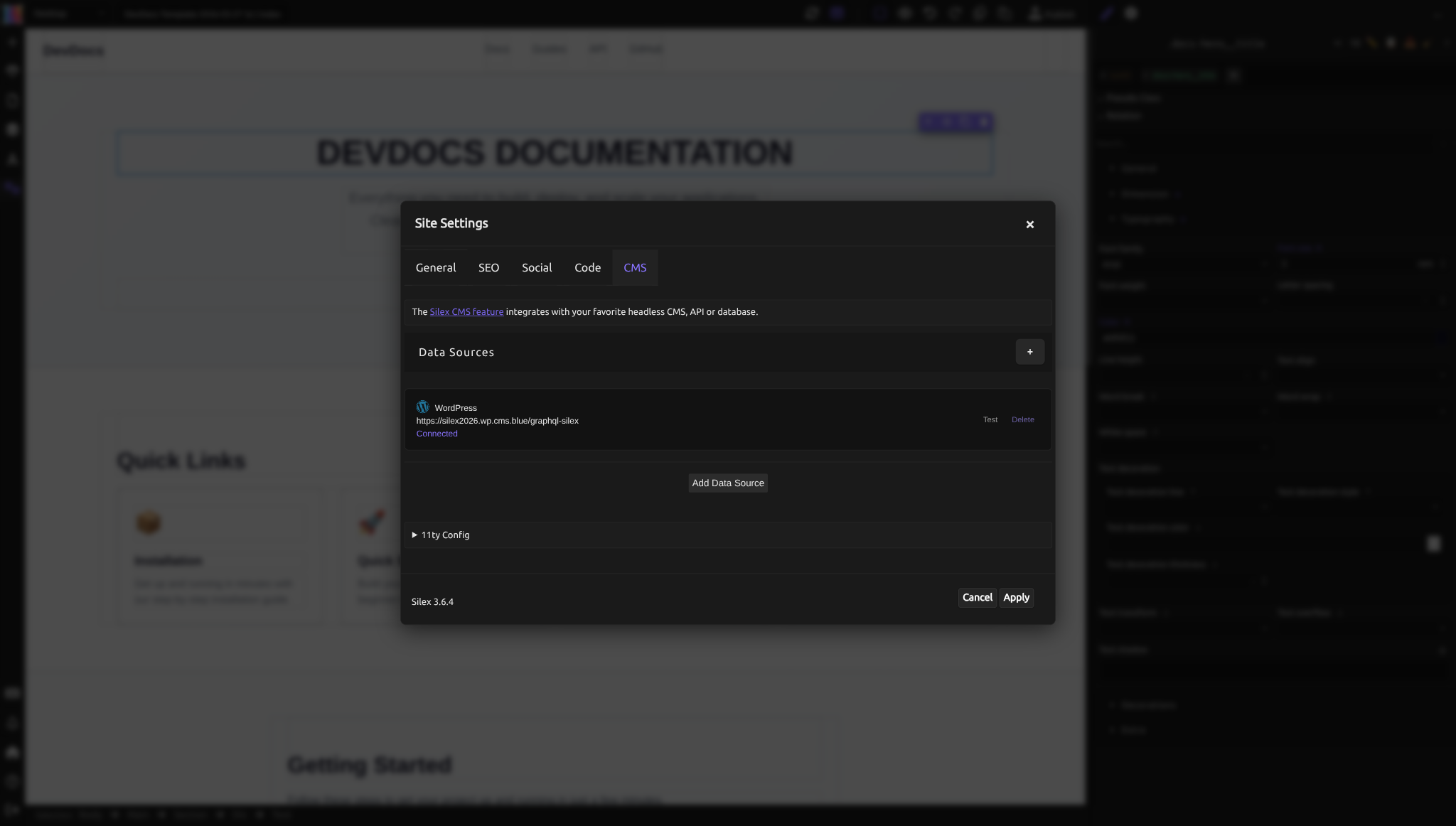
- Click Test Connection or Verify
- Silex attempts to fetch the schema from your API
- If successful, you see a green checkmark and the list of available types
- If it fails, you see an error message — check the URL and headers
Common errors:
- "Connection refused" — the URL is wrong or the API is down
- "Unauthorized" — your headers/authentication is missing or incorrect
- "CORS error" — your API doesn't allow requests from Silex's domain (the API provider needs to configure this)
Browsing available types
Once connected, you see a list of Types — the data structures your API offers.
For WordPress, you see types like:
- Post
- Page
- Category
- Author
Click on a type to expand it and see the available Fields:
- For Post: title, excerpt, content, featured image, author, date, etc.
Fields show their data type (String, Image, List, Object, etc.). This helps you understand what data is available and what kind of values to expect.
Understanding field types
When you expand a type and see its fields, each field shows a kind:
Scalar — a single value (string, number, date, boolean). You can query it directly.
Object — a complex value with its own fields. Example: the "author" field of a post is an object with fields like name, email, bio.
List — multiple items of a type. Example: "posts" is a list of post objects.
When binding data in components, you chain through these types — post → author → name means navigate from the post object to the author object to get the name string.
Editing or removing a data source
Once added, your data source appears in the settings. To edit it:
- Click the data source name or an edit icon
- Change the URL, headers, or label
- Click Save
To remove it:
- Click the data source
- Look for a Delete or Remove button
- Confirm
Removing a data source doesn't delete expressions that reference it — but those expressions will show an error until you reconnect the source or update them.
Troubleshooting
"Could not connect to the API" — Check that the URL is correct and the API is running. Try opening the URL directly in your browser.
"Endpoint returned an error" — Your API is responding, but something is wrong with the request. Check authentication headers and any required parameters.
"Types are loading but incomplete" — GraphQL introspection might be returning a partial schema. Try refreshing the dialog.
Headers aren't being sent — Some APIs have CORS restrictions. If Silex can't authenticate even with the right headers, ask your API provider to enable CORS for your domain.
- Still stuck? Open an issue on GitHub with steps to reproduce, or ask in the community chat.
Example: connecting Supabase
Supabase provides a hosted PostgreSQL database with a built-in GraphQL API.
- In the Supabase dashboard, go to Settings → API and find your project URL
- Your GraphQL endpoint is:
https://YOUR-PROJECT.supabase.co/graphql/v1 - In the data source dialog in Silex:
- URL:
https://YOUR-PROJECT.supabase.co/graphql/v1 - Backend type: Supabase
- Add a header: name
apikey, value: your anon (public) key from the Supabase API settings - Add a header: name
Authorization, value:Bearer YOUR_ANON_KEY - Click Test Connection — you should see your database tables as GraphQL types
Your Supabase tables appear as types. Row-level security (RLS) policies control which data is accessible — make sure public data has the right RLS policies enabled.
Learn more
- How CMS works — understanding the bigger picture of data flow
- WordPress setup — setting up WPGraphQL on your WordPress site
- Binding data — using the connected data source to display content
- Developer: Other GraphQL APIs — detailed setup for Strapi, Supabase, and other backends
Quiz
Q1: Your WordPress site's GraphQL endpoint is at https://myblog.com/graphql. Where do you enter this in Silex?
- A) In the URL field of the data source dialog
- B) In the site settings
- C) It's automatically detected
Answer
A) In the URL field of the data source dialog — You paste the full GraphQL endpoint URL into the data source settings so Silex knows where to fetch data from.
Q2: You're setting up a data source for a private WordPress API that requires authentication. What do you add to the dialog?
- A) The username and password in the URL
- B) An Authorization header with the API token
- C) The JWT token in the label field
Answer
B) An Authorization header with the API token — Authentication headers are separate from the URL. Add a header (usually named "Authorization") with the token value your API provider gives you.
Q3: You selected "WordPress" as the backend type. What does this do?
- A) It installs WordPress on your server
- B) It connects specifically to WordPress and won't work with other platforms
- C) It optimizes the editor UI for WordPress data structure
Answer
C) It optimizes the editor UI for WordPress data structure — Choosing a backend type helps Silex understand the data layout and provide smart defaults, but you can use any GraphQL API with the "Generic" option if your platform isn't listed.
Q4: The connection test is failing with "CORS error". What does this mean?
- A) Your URL is wrong
- B) Your API provider hasn't configured CORS to allow requests from Silex
- C) You're missing authentication headers
Answer
B) Your API provider hasn't configured CORS to allow requests from Silex — CORS (Cross-Origin Resource Sharing) is a browser security feature. Your API provider needs to explicitly allow requests from Silex's domain.