Quick Start
Create your first Silex website and publish it in 5 minutes using the hosted version at v3.silex.me.
By the end of this tutorial, you'll have a live website with your own content.
What you'll need
- A web browser (Chrome, Firefox, Safari, or Edge)
- A free account on a GitLab instance (see below)
- 5 minutes
Step 1: Create a GitLab account
Silex stores your website files on GitLab and publishes to GitLab Pages. You need a free account on one of these:
- GitLab.com — the main instance, recommended for most users
- Framagit — a libre GitLab instance hosted by Framasoft, a French nonprofit. No tracking, no ads. Good if you prefer ethical hosting.
To create a GitLab.com account:
- Go to gitlab.com/users/sign_up
- Fill in your name, username, email, and password
- Verify your email (check your inbox)
- Verify your phone number via SMS (required by GitLab for new accounts)
That's it — your account is ready.
Alternative: FTP storage. If you already have a web hosting provider with FTP access, you can use Silex without GitLab. On the login screen, click "Advanced users" and enter your FTP credentials. Your sites will be stored on your FTP server instead of GitLab. Note: FTP does not provide free hosting like GitLab Pages — you need your own hosting.
Step 2: Log in to Silex
Open https://v3.silex.me in your browser.
Click GitLab.com (or your preferred instance) and authorize Silex to access your account. This allows Silex to create a repository for your website files and publish to GitLab Pages.
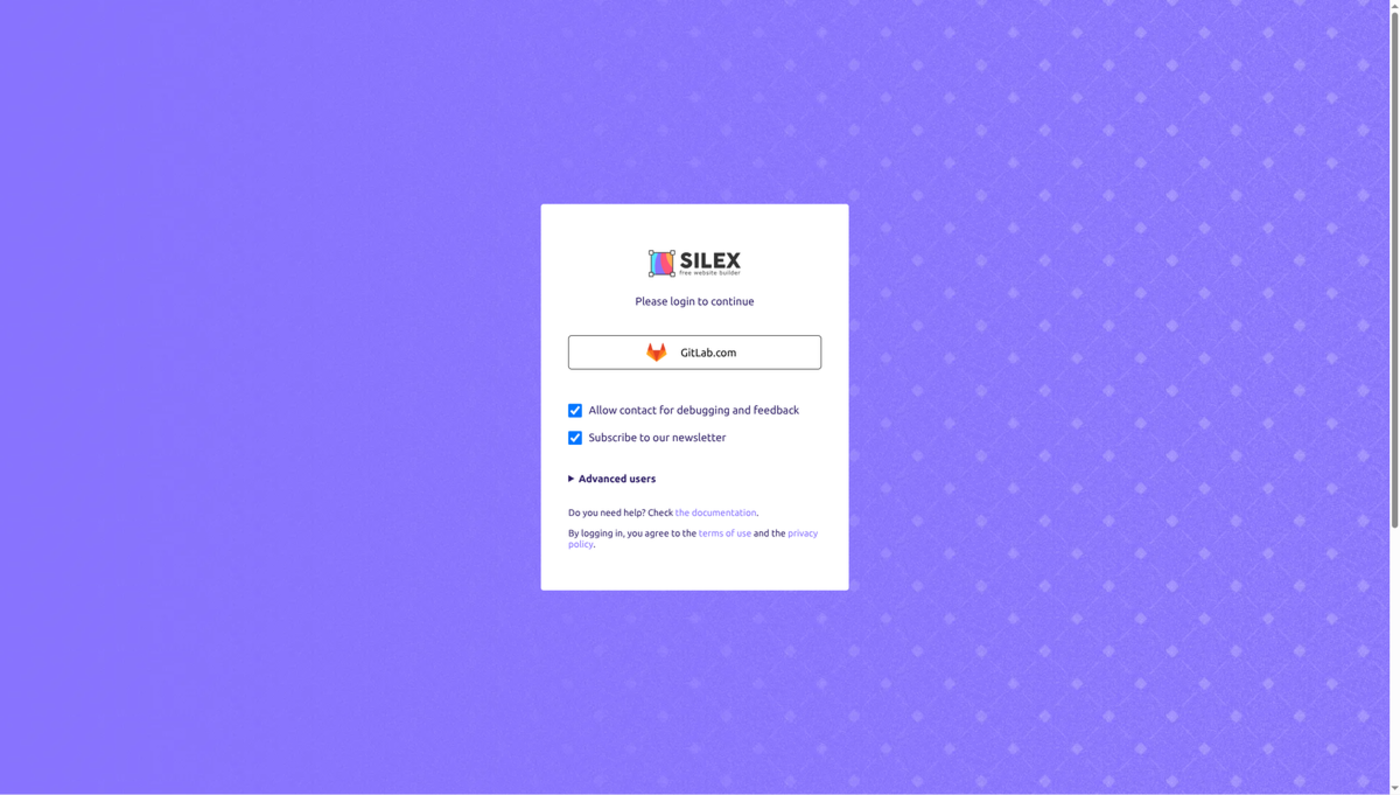
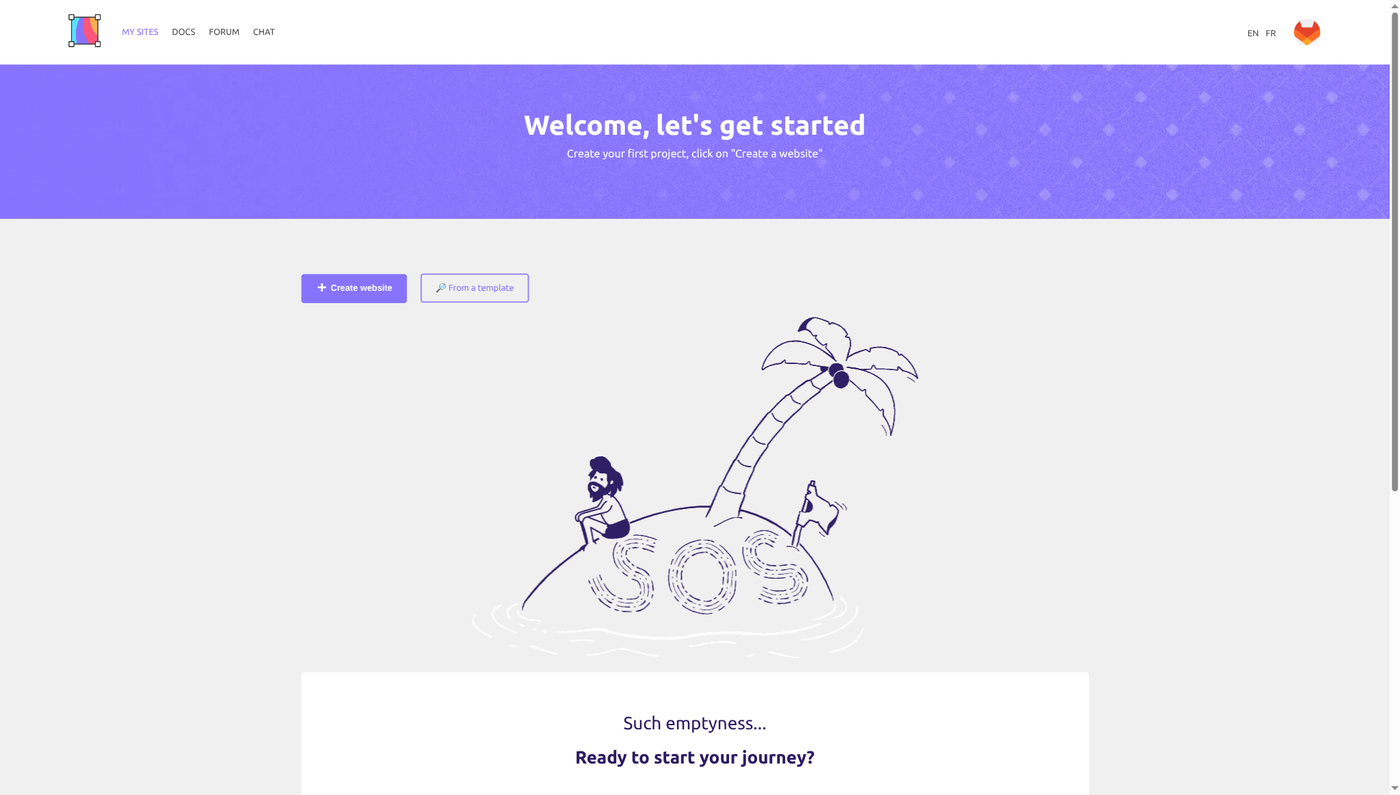
Once logged in, you see the dashboard with a welcome message ("Welcome, let's get started"). Two buttons are available: + Create website to start from a blank page, or From a template to use a pre-made design. If you have no sites yet, the dashboard shows an empty state with an illustration and the prompt "Ready to start your journey?"
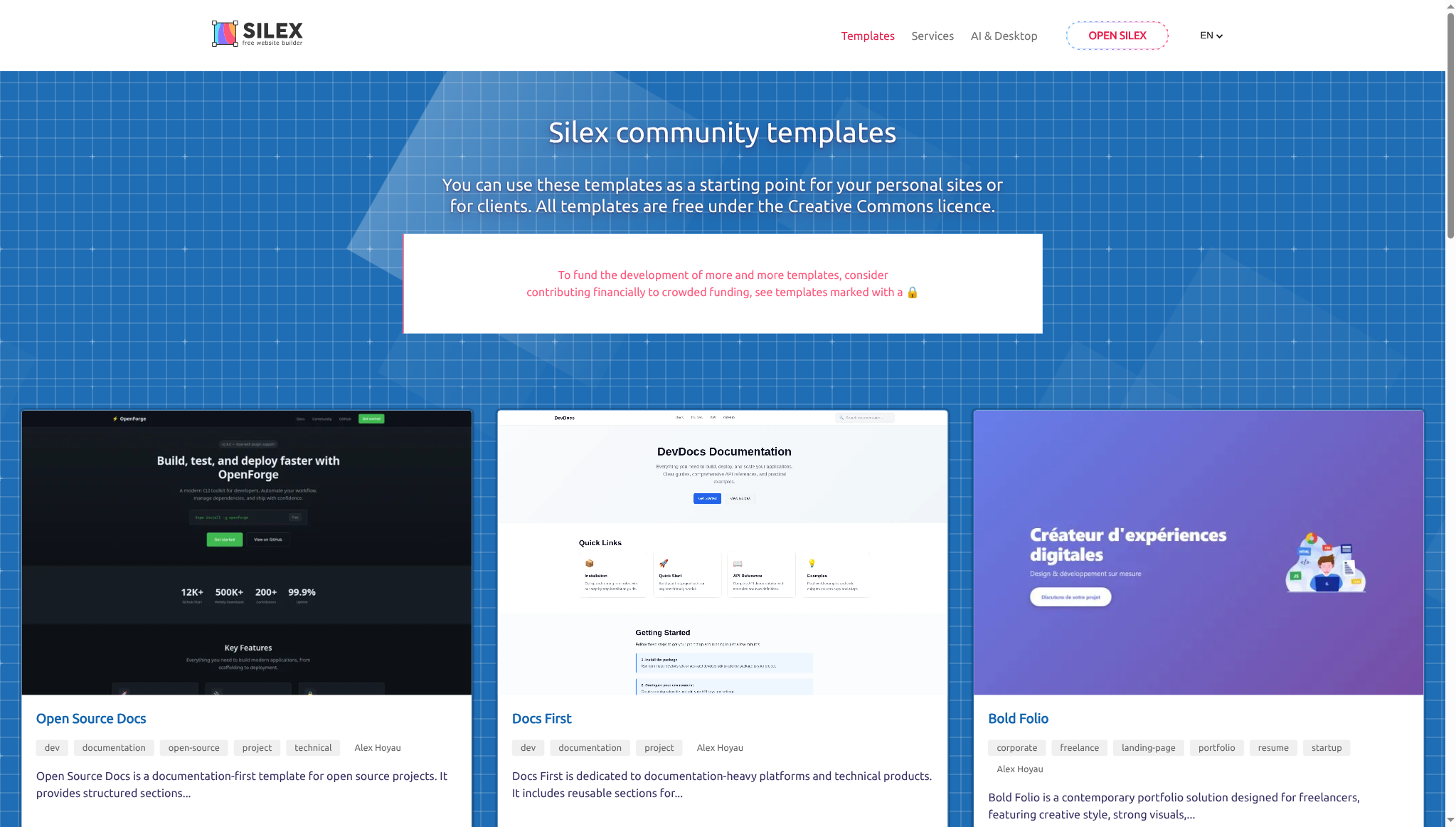
If you click From a template, you'll see the community templates page with free designs you can use as a starting point.
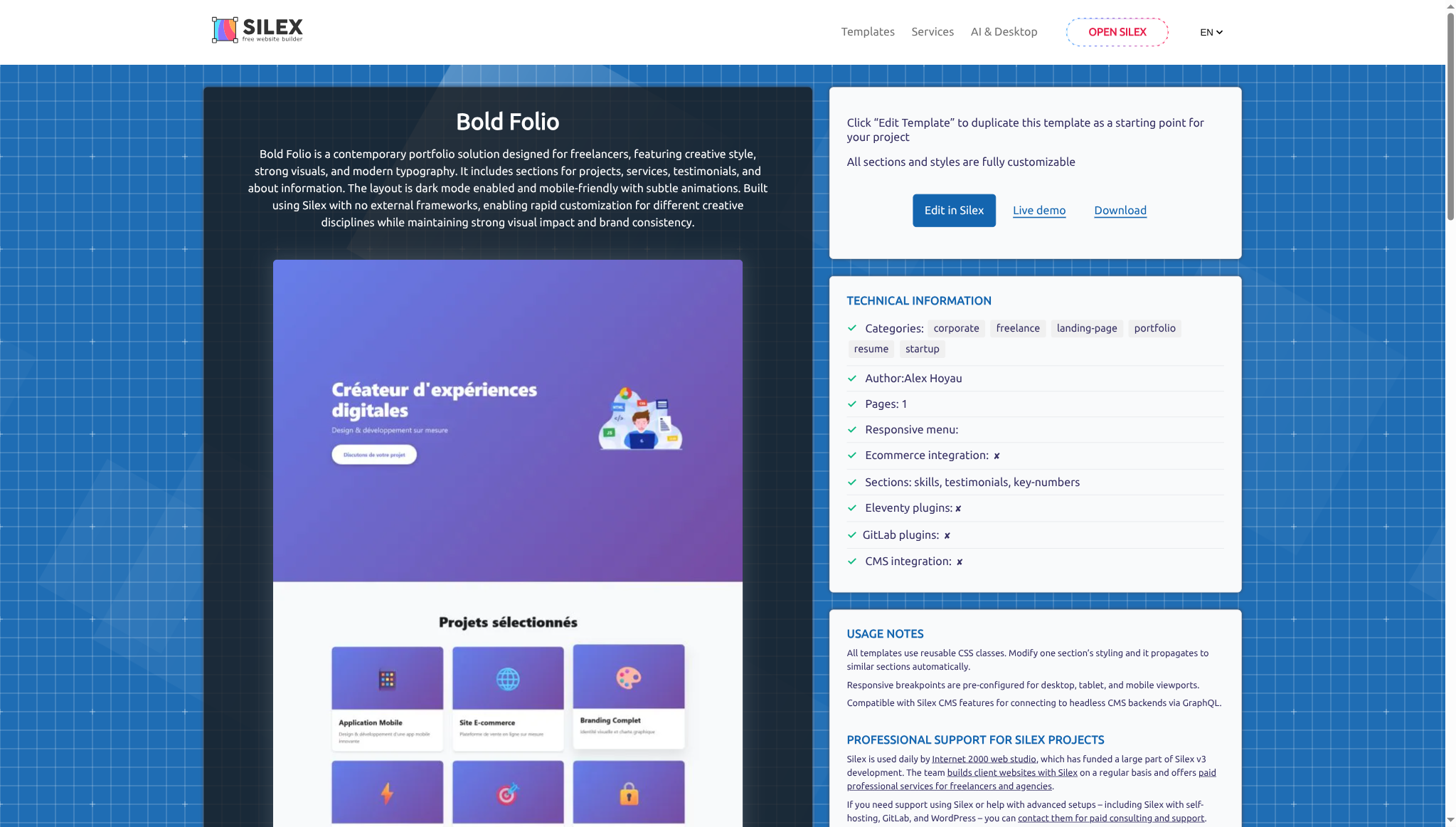
Click a template to see its details, preview, and technical information. Click Edit in Silex to start editing it immediately.
Step 3: Create your site
From a blank page: Click + Create website on the dashboard. Silex creates a new GitLab project and opens the editor with an empty canvas.
From a template: After clicking Edit in Silex on a template page, Silex forks the template into your GitLab account and opens it in the editor. The site name is generated automatically (you can change it later in Settings → General).
Have an existing HTML/CSS project? Vote for Import Existing Project on the roadmap to import projects directly into Silex.
Step 4: Build your first page
The editor shows three areas:
- Left sidebar: Panels for blocks, pages, layers, symbols, fonts, CSS variables, and settings
- Canvas (center): Where you design visually
- Right panel: Style Manager (CSS properties) and selector controls
Add a heading
In the left sidebar, click Blocks (the + icon, or press Shift+A). Under Basics, drag a Text block onto the canvas. Double-click it and type "Welcome to my site". Then, in the right panel, click the Settings icon (gear) and change the Tag name dropdown from DIV to H1.
Add some text
Drag another Text block below the heading. Double-click and type a short description.
Add an image
Under Media in the Blocks panel, drag an Image block below the text. Double-click it to open the asset manager and upload a photo.
Arrange them vertically
By default, blocks stack vertically. To adjust spacing, select an element, and in the right panel open the Dimension section to set Margin and Padding.
Step 5: Add a little style
Style the heading
Click the heading on the canvas. In the right panel, open the Typography section. Change Color to a color you like. Increase Font size to make it larger.
Add a background color
Click the empty space on the canvas (the Body element). In the right panel, open Decorations and set a Background color.
Center the content
Select the container wrapping your content and in the General section set:
- Display: Flex
Then in the Flex section:
- Flex-direction: Column
- Justify-content: Center
- Align-items: Center
Your content is now centered.
Step 6: Publish
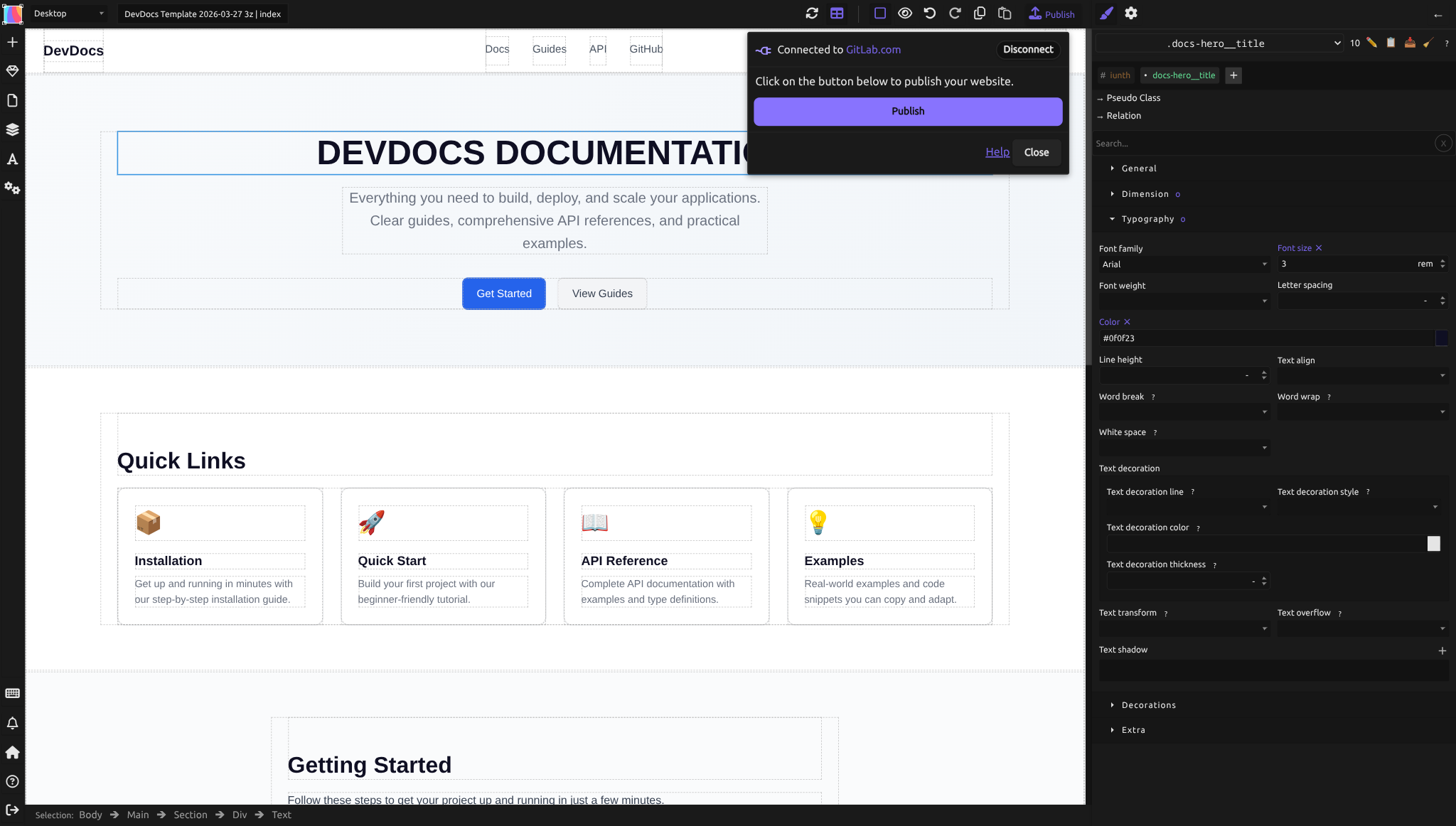
Click the Publish button in the top toolbar (or press Alt+P).
A dialog opens showing "Connected to GitLab.com" with a Publish button. Click it.
Silex now:
- Transforms your design into HTML and CSS
- Commits it to your GitLab repository
- Triggers a build awesome (powered by Eleventy) build via GitLab CI
- Deploys to GitLab Pages
In about 1-2 minutes, your website is live at a URL like https://your-username.gitlab.io/your-site-slug/.
Step 7 (optional): Use your own domain
Your site is live on a GitLab Pages subdomain. To use a custom domain (like mysite.com), see the Custom domain guide.
Next steps
Congratulations — you've published your first site!
From here:
- Learn the editor: Read The Editor to understand all the panels and tools.
- Design responsive layouts: Check Flexbox to arrange elements for all screen sizes.
- Connect real data: See CMS and Data to pull content from WordPress or another service.
- Build a full site: Follow the Full-site tutorial to create a multi-page agency portfolio.
- Stuck? Ask in the community chat — someone will help.
Quiz
Q1: What do you need to publish a Silex website?
- A) A custom server and domain
- B) A GitLab account to host on GitLab Pages
- C) A Webflow account to integrate
Answer
B) A GitLab account to host on GitLab Pages — GitLab provides free static site hosting. You can also publish to FTP or your own server.
Q2: What happens when you click Publish?
- A) Silex saves your design locally in the browser
- B) Silex transforms your design to HTML/CSS and uploads it to GitLab Pages
- C) You have to manually export and upload files
Answer
B) Silex transforms your design to HTML/CSS and uploads it to GitLab Pages — Publishing is automatic and handles all the build steps.
Q3: How do you center content on your page?
- A) Use the alignment tools in the Style Manager (Display: Flex, Justify-content: center)
- B) Use CSS Grid
- C) Silex does it automatically
Answer
A) Use the alignment tools in the Style Manager — Set Display to Flex, Flex-direction to column, Justify-content and Align-items to center.
Q4: You want to change the heading color. Where do you go?
- A) The left sidebar (Blocks panel)
- B) The right panel (Style Manager), then find Color
- C) The top toolbar
Answer
B) The right panel (Style Manager), then find Color — All styling controls are in the right panel when you select an element.
Q5: After publishing, your site is live at what kind of URL?
- A)
https://your-domain.com(you must own the domain) - B)
https://your-username.gitlab.io/your-site-slug/(GitLab Pages default) - C)
https://v3.silex.me/your-site(always on Silex)
Answer
B) https://your-username.gitlab.io/your-site-slug/ — GitLab Pages gives you a free subdomain. You can point a custom domain to it later.