Testing across devices
You have built your layout, set your breakpoints, and used fluid units. Now you need to see whether it actually works. Silex gives you device preview buttons to simulate screen sizes directly in the editor, but there are limits to what in-editor testing can tell you. This page covers how to test effectively without leaving the editor, and when you need to go further.
Two things to keep in mind:
- The editor preview is a simulation, not a real device. It resizes the canvas to match a device width, but it does not replicate touch behavior, real browser rendering differences, or mobile address bars.
- Test early and test often. Fixing a responsive issue when you have two elements is simple. Fixing one after building twenty pages is painful.
Using the device preview buttons
The device preview buttons sit in the top toolbar. Each button represents a configured breakpoint width. Clicking one resizes the canvas to show how your layout looks at that width.
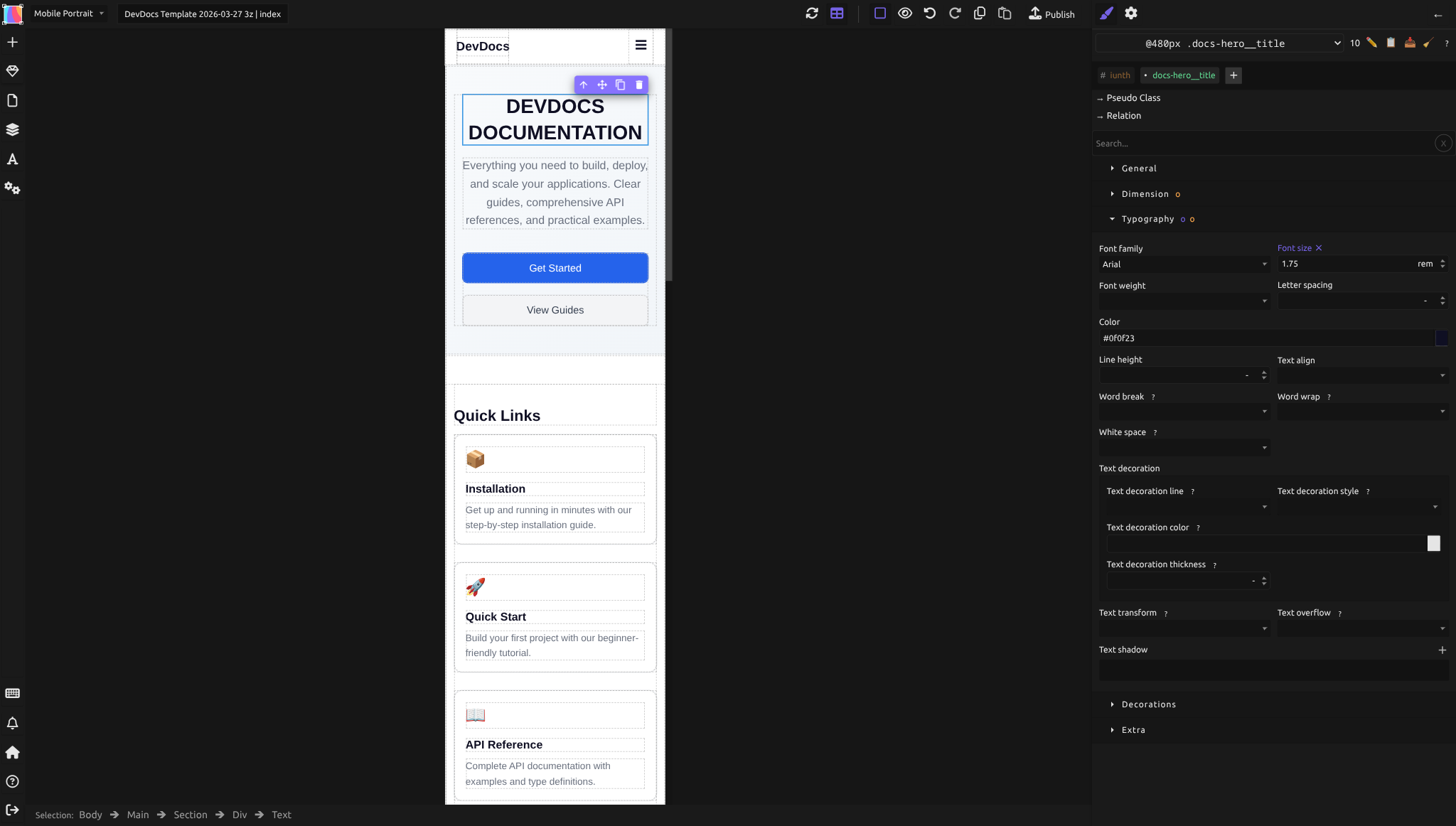
How to test with device buttons:
- Start on the desktop device (the widest view). Review the layout — check alignment, spacing, and text overflow.
- Click the next narrower device button. Look for elements that overlap, text that runs off-screen, or images that overflow their containers.
- Continue clicking through each device, narrowest last. At each width, check:
- Does the navigation still work? Are links accessible?
- Do images fit within their containers?
- Is text readable without horizontal scrolling?
- Do flex layouts stack correctly?
- Are gaps and padding proportional?
- Switch back to desktop and confirm you did not accidentally change any base styles.
What to look for at each breakpoint:
| Check | What could go wrong |
|---|---|
| Text overflow | Long words or titles extending past their container |
| Image overflow | Photos wider than their parent element |
| Horizontal scroll | Any content pushing the page wider than the viewport |
| Touch target size | Buttons and links too small to tap (aim for at least 44x44 pixels) |
| Stacking order | Elements that should stack vertically still sitting side by side |
| Whitespace | Excessive padding that wastes space on small screens |
| Hidden content | Elements set to display: none that should still be visible, or vice versa |
Editing at a specific device width
When you find a problem at a particular breakpoint, fix it right there. The Style panel is context-aware — styles you change while a device is active are scoped to that breakpoint's media query.
- Click the device button where the problem appears
- Select the element that needs fixing
- Adjust the property in the Style panel
- Switch to adjacent devices to make sure the fix did not create new problems
Always check one breakpoint wider and one narrower than the one you changed. A fix at 768px might look perfect there but cause unexpected behavior at 1024px or 480px because of how max-width media queries cascade.
Previewing the published page
The editor canvas is useful for quick checks, but it is not a real browser. For a more accurate test, use the preview or publish feature:
- Publish your site (or use the preview feature if available)
- Open the published URL in a regular browser
- Use the browser's built-in responsive design tools (see below)
Browser developer tools
Every modern browser has responsive design testing built in:
- Chrome/Edge: Press
F12, then click the device toolbar icon (or pressCtrl+Shift+M). You can select preset devices or enter custom dimensions. - Firefox: Press
F12, then click the responsive design mode icon (or pressCtrl+Shift+M). Similar device presets and custom sizing. - Safari: Enable the Develop menu in preferences, then use Develop > Enter Responsive Design Mode.
These tools simulate viewport width more accurately than the editor canvas because they use the actual browser rendering engine with real media queries.
Checking on real devices
Simulations are approximations. Real devices have differences that simulations miss:
- Touch behavior: hover states do not work the same way on touch screens. A dropdown menu that opens on hover will not work on a phone.
- Mobile browser chrome: the address bar and bottom navigation bar on mobile browsers change the visible viewport height. Elements sized with
vhmay behave differently than expected. - Font rendering: text may look different across operating systems and browsers. A font that renders crisply on your desktop may look heavier or lighter on mobile.
- Performance: complex layouts with many elements and large images may lag on lower-powered devices.
Quick real-device testing: 1. Publish your site 2. Open the URL on your phone or tablet 3. Test in both portrait and landscape orientations 4. Tap through all interactive elements 5. Scroll through every page
If you do not have a physical device, browser developer tools are the next best thing. But for a final check before launch, test on at least one real phone.
A testing checklist
Run through this for each page of your site:
- [ ] Desktop (1200px+): layout correct, text readable, images sharp
- [ ] Tablet landscape (1024px): no overflow, navigation accessible
- [ ] Tablet portrait (768px): columns stack appropriately, text size comfortable
- [ ] Mobile (480px or narrower): single-column layout, touch-friendly targets, no horizontal scroll
- [ ] All images have
max-width: 100%or are otherwise constrained - [ ] Navigation works at every width
- [ ] No text overflows its container
- [ ] Interactive elements (buttons, links, form fields) are large enough to tap
- [ ] Published page tested in at least one real browser outside the editor
Common mistakes
- Only testing at exact breakpoint widths. Real users have screens at every possible width. Test at widths between your breakpoints too — resize the browser slowly and watch for awkward in-between states.
- Assuming the editor preview is sufficient. The canvas preview does not include the viewport meta tag behavior, mobile browser chrome, or touch interactions. Always test the published page.
- Fixing one device and breaking another. Every change at a breakpoint cascades to narrower widths. Always check adjacent breakpoints after making a fix.
- Ignoring landscape orientation on phones. A phone in landscape has a wide, short viewport — different from any standard breakpoint. Make sure your layout handles it.
- Testing only on your own device. Your phone is one of hundreds of models. At minimum, check a couple of different viewport widths in browser developer tools.
- Still stuck? Open an issue on GitHub with steps to reproduce, or ask in the community chat.
Learn more
- MDN: Responsive design — comprehensive responsive design guide
- MDN: Using media queries — media query reference
- Breakpoints — setting up and managing breakpoints in Silex
- Responsive techniques — fluid units and sizing
- Flexbox — layout techniques that affect responsive behavior
Advanced: debugging responsive issues
Finding the element that causes horizontal scroll
If your page has a horizontal scrollbar on mobile, one element is wider than the viewport. To find it:
- Open browser developer tools on the published page
- In responsive mode, set the width to your mobile breakpoint
- Look for elements that extend past the right edge — they will have a scrollbar or visible overflow
- Common culprits: images without
max-width: 100%, elements with fixed pixel widths, elements with large horizontal padding or margin
Debugging media query cascade
If a style is not applying as expected at a breakpoint:
- In the editor, check which device is active — the device name appears in the toolbar
- Select the element and look at the Style panel. Properties overridden at the current breakpoint show their breakpoint-specific value.
- If a property shows the wrong value, check whether a wider breakpoint is setting it. Remember:
max-widthqueries cascade downward, so a style at 1024px also applies at 768px unless overridden at 768px.
Testing performance on slow connections
Mobile users often have slower connections. Large images and complex layouts can make the page feel sluggish. Use Chrome DevTools Network tab to throttle the connection speed and see how your page loads under constrained conditions.
Reference: browser responsive testing shortcuts
| Browser | Open DevTools | Toggle responsive mode |
|---|---|---|
| Chrome | F12 or Ctrl+Shift+I |
Ctrl+Shift+M |
| Edge | F12 or Ctrl+Shift+I |
Ctrl+Shift+M |
| Firefox | F12 or Ctrl+Shift+I |
Ctrl+Shift+M |
| Safari | Cmd+Option+I (with Develop menu enabled) |
Develop > Enter Responsive Design Mode |
All browsers let you select preset device profiles (iPhone, iPad, Galaxy, etc.) or enter custom width and height values. Chrome and Edge also let you simulate touch events, slow network connections, and CPU throttling.
Quiz
Q1: You fixed a layout issue at the 768px breakpoint. What should you check next?
- A) Only the desktop view to make sure it is unchanged
- B) The breakpoints immediately above and below (1024px and 480px) to catch cascade effects
- C) Only the mobile view at 480px
Answer
B) The breakpoints immediately above and below (1024px and 480px) to catch cascade effects — Changes at a breakpoint cascade to narrower widths and may interact with wider breakpoint styles. Always check adjacent devices.
Q2: Your site looks perfect in the Silex editor at every device width, but on a real phone the text is tiny and the layout is zoomed out. What is the most likely cause?
- A) The phone has an unusual screen size
- B) The viewport meta tag is missing or incorrect
- C) The breakpoints are wrong
Answer
B) The viewport meta tag is missing or incorrect — Without the viewport meta tag, mobile browsers render at a virtual desktop width and scale down. Silex includes this tag during publication, but verify it is present in the published HTML.
Q3: You notice a horizontal scrollbar on mobile but not on tablet or desktop. How do you find the element causing it?
- A) Delete elements one by one until the scrollbar disappears
- B) Use browser developer tools in responsive mode at the mobile width and look for elements extending past the viewport edge
- C) Add
overflow: hiddento the body
Answer
B) Use browser developer tools in responsive mode at the mobile width and look for elements extending past the viewport edge — DevTools let you inspect and identify the overflowing element directly. Option C hides the symptom without fixing the cause. Option A works but is slow and destructive.
Q4: Why is testing on a real phone better than using browser developer tools?
- A) Browser developer tools cannot simulate different screen widths
- B) Real phones show touch behavior, actual font rendering, and mobile browser chrome that simulations cannot fully replicate
- C) Developer tools only work on desktop websites
Answer
B) Real phones show touch behavior, actual font rendering, and mobile browser chrome that simulations cannot fully replicate — Hover states, address bar behavior, and rendering differences between devices are things that only real hardware reveals.
Q5: You have breakpoints at 1024px, 768px, and 480px. Your layout looks fine at all three widths but breaks at 600px. What should you do?
- A) Add a new breakpoint at 600px
- B) Check whether fluid techniques (relative units, flex-wrap) could fix the issue without a new breakpoint
- C) Ignore it — nobody has a 600px screen
Answer
B) Check whether fluid techniques (relative units, flex-wrap) could fix the issue without a new breakpoint — Before adding breakpoints, see if the design can flex naturally through that width. If a container uses a percentage width and flex-wrap, the issue may resolve itself. Only add a breakpoint if structural changes are truly needed.