SEO
Search engines decide whether to show your page based on a few pieces of text you control: the title, the description, the language, and how your headings are structured. Getting these right takes five minutes and determines whether anyone finds your site.
Three principles to remember:
- Every page needs its own title and description. Identical metadata across pages tells search engines your pages are duplicates.
- Write for humans first, search engines second. If a title sounds awkward when read aloud, rewrite it.
- Heading hierarchy is structure, not style. Use headings to outline your content, not to make text bigger.
Where to find SEO settings
Open the Settings dialog (gear icon in the left sidebar) and select the SEO tab. You will see four fields: Language, Title, Description, and Favicon.
For site-wide defaults, open Site Settings. For per-page overrides, open Page Settings. Page values always override site values when present. See Site Settings for how the override system works.
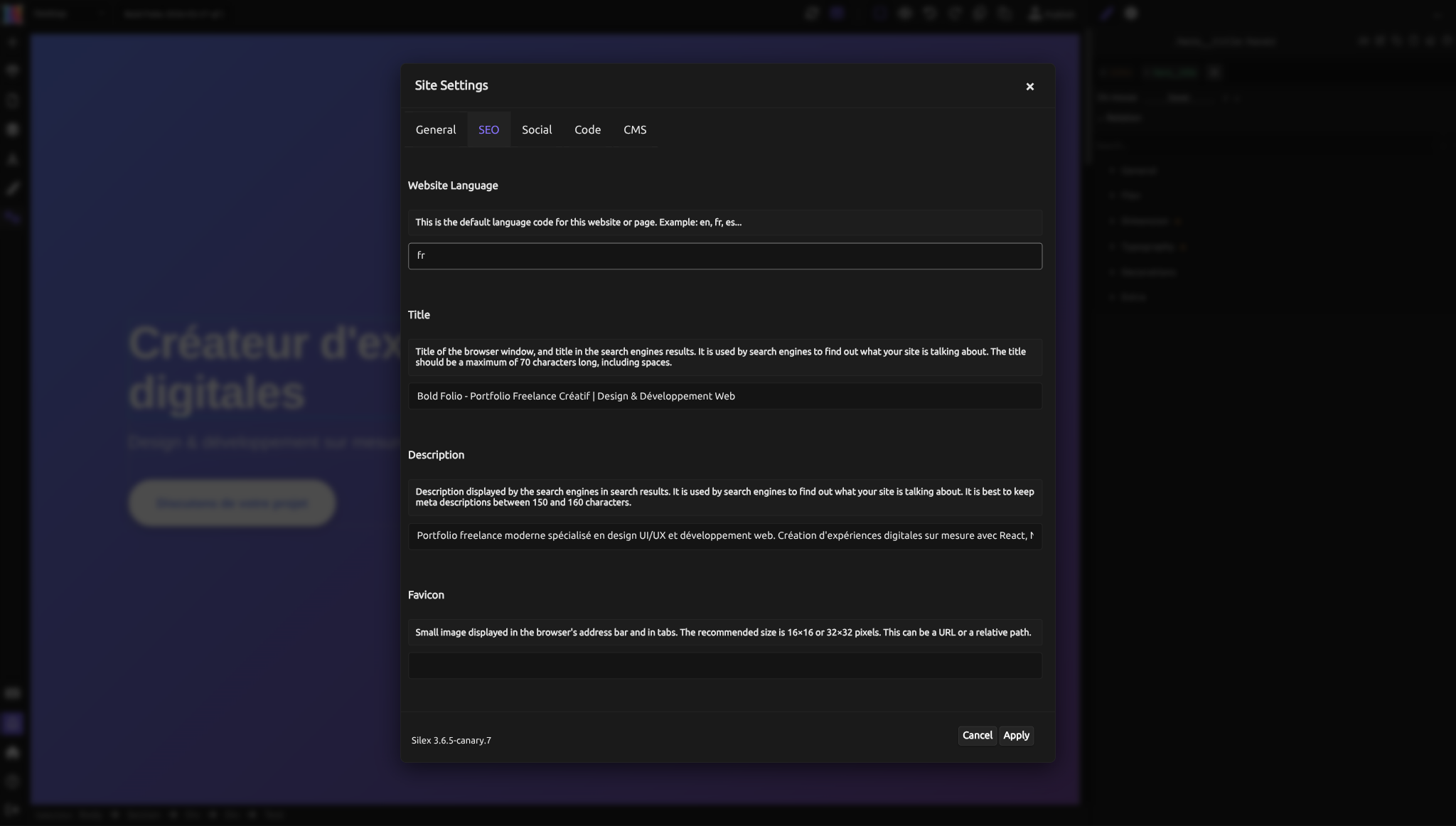
Title
The title appears in three places: the browser tab, search engine results, and when someone bookmarks your page. It is set through the <title> HTML element.
How to write a good title
Keep it under 70 characters. Search engines truncate longer titles with an ellipsis. You lose your most important words if they are at the end.
Put the important words first. "Handmade Ceramics - Mountain Clay Studio" is better than "Mountain Clay Studio - Handmade Ceramics" because someone searching for ceramics sees the relevant word immediately.
Make every page title unique. A homepage might be "Mountain Clay Studio - Handmade Ceramics & Pottery Classes". The shop page might be "Shop Bowls, Mugs & Vases - Mountain Clay Studio". The about page might be "Our Story - Mountain Clay Studio". Each title tells the search engine what that specific page is about.
Do not stuff keywords. "Ceramics Pottery Handmade Ceramics Buy Ceramics Cheap Ceramics" will be penalized by search engines and looks terrible in browser tabs.
Setting the title
- Open Site Settings > SEO tab.
- Enter your default title in the Title field.
- Click Apply.
Then for each important page:
- Open Page Settings > SEO tab.
- Enter a title specific to that page.
- Click Apply.
If you leave a page's title empty, it falls back to the site-wide title.
Description
The meta description is the snippet of text that appears below your title in search results. Search engines do not always use it -- they sometimes generate their own snippet from your page content -- but a well-written description significantly increases the chance someone clicks.
How to write a good description
Aim for 150 to 160 characters. Shorter descriptions waste valuable space. Longer ones get cut off.
Describe what the visitor will find on this page. Not what your company does in general -- what this specific page offers. "Browse our collection of hand-thrown ceramic bowls, mugs, and vases. Free shipping on orders over $50." tells the reader exactly what to expect.
Include a reason to click. A description is an advertisement for your page. "Learn the basics of wheel throwing in our weekend pottery classes. No experience needed." gives a clear benefit.
Do not duplicate the title. The title and description appear together in search results. Use the description to expand on what the title promises.
Setting the description
Same process as the title: set a site-wide default in Site Settings, then override on individual pages in Page Settings. Every page that serves a different purpose should have its own description.
Language
The language code is covered in detail in Site Settings. For SEO specifically, the language code helps search engines serve your pages to the right audience. A page marked lang="fr" is more likely to appear in French search results.
Set it at the site level. Override it on individual pages only if those pages are in a different language.
Favicon
The favicon does not directly affect search rankings, but it appears next to your site name in search results on mobile devices. A recognizable favicon builds trust and increases click-through rates. See Site Settings for sizing and format guidance.
Heading hierarchy
Headings are not SEO settings in the Settings dialog -- they are part of your page content. But they matter enormously for search engines and accessibility, so they belong in this discussion.
HTML headings go from <h1> (most important) to <h6> (least important). They create an outline of your page that search engines and screen readers use to understand your content structure.
Rules for headings
One <h1> per page. This is the main topic of the page. On a blog post, it is the post title. On a product page, it is the product name. On your homepage, it might be your business name or tagline.
Do not skip levels. Go from <h1> to <h2> to <h3>, not from <h1> to <h3>. Skipping levels confuses the outline and breaks navigation for screen reader users.
Use headings for structure, not size. If you want bigger text, change the font size in the Style panel. If you use an <h2> just because it looks bigger, you are telling search engines and screen readers that text is a major section heading when it might just be a decorative label.
Put keywords in headings naturally. "Our Pottery Classes" is a fine <h2>. "Best Pottery Classes Cheap Pottery Lessons Online" is keyword stuffing.
Checking your heading hierarchy
Read through your page and imagine the headings as a table of contents. Does the outline make sense? Could someone understand your page's structure just from the headings?
Example of a good hierarchy:
- H1: Mountain Clay Studio
- H2: Our Classes
- H3: Beginner Wheel Throwing
- H3: Advanced Glazing Techniques
- H2: Visit Us
- H3: Location & Hours
- H3: Parking
Example of a bad hierarchy:
- H1: Mountain Clay Studio
- H3: Classes (skipped H2)
- H2: Visit Us
- H1: Contact (two H1s)
Want to improve your site's heading structure and overall accessibility? Vote for Accessibility Enhancements on the roadmap. You can also vote for Automatic Sitemap Generation to get auto-generated sitemap.xml on publish.
Per-page SEO overrides
Every field in the SEO tab can be overridden at the page level. This is critical for multi-page sites. Here is a practical approach:
- Set strong site-wide defaults in Site Settings. Use your brand name and a general description.
- Override the title on every page. Each page should communicate its unique content.
- Override the description on key pages. At minimum: homepage, any landing pages, and any pages you want to rank in search results.
- Override the language only if a page is in a different language than the rest of the site.
Practical checklist
Before publishing, check these items:
- [ ] Site-wide title is set and under 70 characters
- [ ] Site-wide description is set and between 150-160 characters
- [ ] Language code is set (e.g.,
en,fr) - [ ] Favicon is set and displays correctly in the preview
- [ ] Every page has a unique title
- [ ] Key pages have unique descriptions
- [ ] Each page has exactly one
<h1> - [ ] Headings follow a logical hierarchy without skipping levels
- [ ] No heading is used purely for visual size
Common mistakes
- Using the same title on every page. Search engines treat identical titles as duplicate content signals. Override per page.
- Writing descriptions that describe the company, not the page. "We are a pottery studio" on every page wastes the description. Each page should describe what the visitor will find on that page.
- Using
<h2>or<h3>for visual size. Change font size in the Style panel instead. Keep headings semantic. - Leaving the language field empty. Two characters (
en,fr,es) and you are done. There is no reason to skip it.
Advanced: how SEO metadata is rendered in HTML
Title tag
The title you enter becomes the <title> element inside <head>. If both a site title and a page title exist, the page title wins entirely -- they are not concatenated. If you want "Page Name - Site Name" formatting, write the full string in the page override.
Meta description
The description becomes <meta name="description" content="..."> in the <head>. Search engines may choose to ignore it and generate their own snippet, especially if the description does not match the page content.
Canonical URLs
If your page is accessible at multiple URLs, search engines may index duplicates. You can add a <link rel="canonical"> tag in the Custom Code head editor to tell search engines which URL is the original:
Robots meta tag
To prevent a page from appearing in search results, add this in the page's Custom Code head editor:
Use this for draft pages, thank-you pages, or admin pages that should not be indexed.
Structured data
For advanced SEO, you can add JSON-LD structured data through the Custom Code head editor. This helps search engines display rich results (star ratings, event dates, recipe cards, etc.).
Quiz
Q1: Your site title is "Green Thumb Garden Center" and you have a page about rose care. What should the page title be?
- A) "Green Thumb Garden Center"
- B) "Rose Care Tips: Pruning, Watering & Feeding - Green Thumb Garden Center"
- C) "Roses Gardening Tips Garden Rose Care Buy Roses Cheap"
Answer
B) "Rose Care Tips: Pruning, Watering & Feeding - Green Thumb Garden Center." It describes the specific page content, stays under 70 characters, and includes the brand name. Option A duplicates the site title. Option C is keyword stuffing.
Q2: Your meta description is 200 characters long. What happens in search results?
- A) The full description is displayed
- B) The description is truncated, cutting off your last words
- C) Search engines reject the page
Answer
B) The description is truncated. Search engines typically show 150-160 characters. Anything beyond that is cut off, often mid-sentence. Keep descriptions within that range.
Q3: Your page has two <h1> tags. What is the problem?
- A) The page will not load
- B) Search engines cannot determine which heading is the main topic, and screen reader navigation becomes confusing
- C) The second H1 will be ignored
Answer
B) Search engines cannot determine which heading is the main topic. Multiple H1 tags dilute the page's focus signal and confuse assistive technology that uses headings for navigation. Use one H1 per page.
Q4: You want your blog page to show "Latest Posts - Green Thumb Blog" in search results, but the site-wide title is "Green Thumb Garden Center". What do you do?
- A) Change the site-wide title to "Latest Posts - Green Thumb Blog"
- B) Open Page Settings for the blog page and set its title to "Latest Posts - Green Thumb Blog"
- C) Add a
<title>tag in the Custom Code head editor
Answer
B) Open Page Settings for the blog page and set its title. Page-level overrides exist exactly for this purpose. Changing the site-wide title would affect every page. Adding a title in custom code could create a conflict with the generated title tag.
Q5: You go from an <h1> directly to an <h3>, skipping <h2>. What should you do?
- A) Nothing -- it is fine for SEO
- B) Change the
<h3>to an<h2>, or add an<h2>above it - C) Remove the
<h1>so the<h3>becomes the top-level heading
Answer
B) Change the <h3> to an <h2>, or add an <h2> above it. Skipping heading levels breaks the document outline. Screen readers and search engines expect a logical hierarchy: H1, then H2, then H3.