Site Settings
Every website needs a handful of global properties -- a name, a language, a favicon. The Settings dialog is where you define these once, and they apply to every page unless you override them at the page level.
Two things to keep in mind:
- Site settings are defaults. Page-level overrides always win when they exist.
- Settings live in the published HTML. The language becomes the
langattribute, the favicon becomes a<link>tag, and so on.
Opening the Settings dialog
Click the gear icon (Settings) in the left sidebar (shortcut: Alt+S). The dialog opens with a tabbed sidebar on the left and a form on the right. You will see five tabs: General, SEO, Social, Code, and CMS.
- Escape closes the dialog without saving.
- Ctrl+Enter (or Cmd+Enter on Mac) submits the form.
- Alt+C cancels, Alt+A applies.
There are two modes: Site Settings and Page Settings. Site Settings define the defaults for your entire website. Page Settings let you override those defaults for individual pages. This page covers Site Settings. For page-level overrides, see the relevant sections in SEO, Social Sharing, and Custom Code.
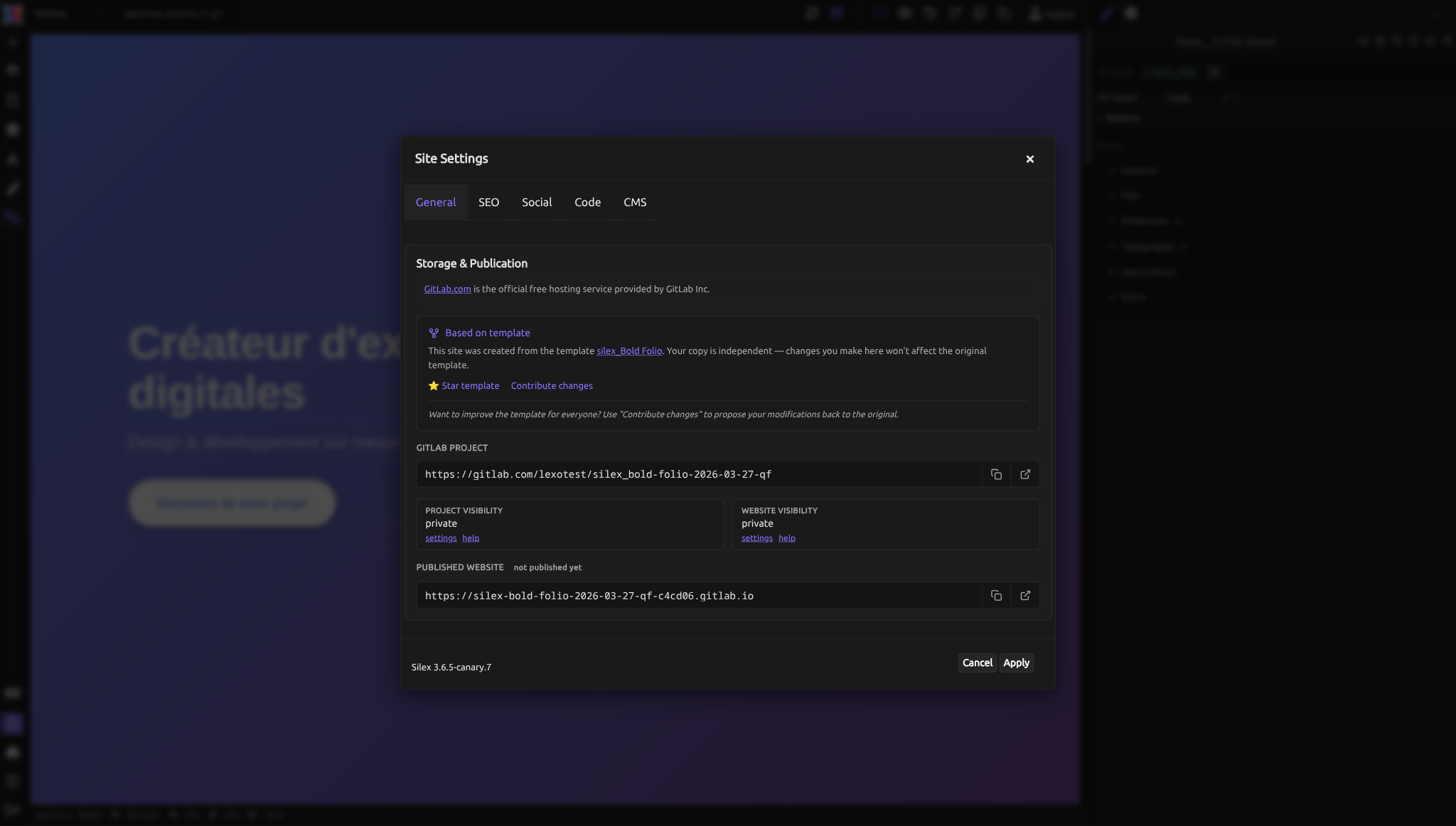
General tab: Storage & Publication
The General tab shows information about your project's storage and publication status. It includes:
- Based on template -- if your site was created from a template, an info box shows which template was used, with links to star or contribute to it.
- GitLab Project URL -- the URL of the GitLab repository storing your site files. You can copy or open it directly.
- Project visibility -- whether your GitLab project is public or private, with links to change the setting or get help.
- Website visibility -- whether your published website is publicly accessible, with links to settings and help.
- Published Website URL -- the live URL of your site (or "not published yet" if you have not published).
- Version -- the version of Silex you are using (e.g., Silex 3.6.5).
This tab is informational and links out to your GitLab project for administrative actions (changing visibility, managing the repository). The site name is derived from your GitLab project name.
Language
Found in the SEO tab, the language field sets the default language code for your entire site. This value is placed on the <html lang="..."> attribute in the published HTML.
Use a two-letter ISO 639-1 code:
enfor Englishfrfor Frenchesfor Spanishdefor Germanptfor Portuguese
Why it matters: Screen readers use this to select the correct pronunciation engine. Search engines use it to serve your page to the right audience. A missing or wrong language code makes your site harder to find and harder to use.
You can override the language on individual pages. If your site is mostly in English but you have one page in French, set the site language to en and override that single page to fr in its Page Settings.
Favicon
The favicon is the small icon that appears in browser tabs, bookmarks, and history. You set it in the SEO tab.
Enter a URL or a relative path to an image file. The recommended size is 16x16 or 32x32 pixels. Common formats are .ico, .png, and .svg.
Tips for a good favicon:
- Keep it simple. At 16 pixels, detail disappears. Use a bold letter, a simple symbol, or a cropped version of your logo.
- Use a transparent background for PNG or SVG favicons so it looks good on both light and dark browser themes.
- Test in multiple browsers. Some browsers cache favicons aggressively -- if you change it, you may need to clear your cache to see the update.
If you leave the favicon field empty, browsers will show their default blank-page icon.
How site settings become HTML
When you publish, the settings you enter are written directly into the HTML of every page:
- Language becomes
<html lang="en">(or whatever code you entered). - Favicon becomes
<link rel="icon" href="your-favicon-path">in the<head>. - Title becomes the
<title>tag (covered in SEO). - Description becomes a
<meta name="description">tag (covered in SEO). - Custom head code is injected directly into
<head>(covered in Custom Code).
You do not need to write this HTML yourself. The Settings dialog handles it.
Site settings vs. page settings
The Settings dialog works at two levels. When you open it from the gear icon without a specific page selected, you are editing site-wide defaults. When you open Page Settings, you see the same tabs (SEO, Social, Code, CMS) but the values you enter there apply only to that page.
Here is how the system decides what to use:
- If a page has its own value for a setting, that value is used.
- If a page does not have its own value, the site-wide default is used.
- If neither has a value, nothing is added to the HTML.
This means you can set your SEO title, description, and Open Graph image once at the site level, then override them only on the pages that need something different.
Practical workflow
A typical setup sequence:
- Open Site Settings (gear icon in left sidebar, or Alt+S).
- General tab: Review your storage and publication info -- project URL, visibility, and published site URL.
- SEO tab: Set the language, title (70 characters recommended), description (150-160 characters), and favicon. See SEO for guidance on writing good titles and descriptions.
- Social tab: Set the Open Graph title (60-90 characters), description (60-90 characters), and image (1200x627 pixels recommended). Test with the provided links for Facebook, Twitter, and LinkedIn. See Social Sharing for image sizing.
- Code tab: Add any custom HTML that should appear in the
<head>of every page. A code editor is provided. See Custom Code for use cases. - CMS tab: Configure data sources (add, edit, or delete connections to external APIs) and adjust the 11ty configuration if you use a static site generator. See CMS and Data for details.
- Click Apply (or press Ctrl+Enter).
After that, visit any pages that need different values and set their overrides in Page Settings.
Common mistakes
- Forgetting the language code. This is the most frequently skipped setting and the easiest to fix. Set it once and every page benefits.
- Using a full logo as a favicon. Logos with text are unreadable at 16 pixels. Crop to a symbol or initial.
- Setting the same title on every page. The site-level title is a default -- you should override it per page so search engines can distinguish your pages. See SEO.
- Confusing the General tab with SEO settings. The General tab shows project info (storage, visibility, URLs). The SEO title and description are in the SEO tab -- that is what search engines and browser tabs display.
Advanced: how settings are stored and synced
Storage format
Settings are stored as a flat key-value object inside the website data. The keys match the form field names: title, description, favicon, lang, head, og:title, og:description, og:image. When you save, the dialog collects all non-empty form fields and writes them to the model.
Live preview
When you change settings and apply them, the editor updates the canvas immediately. Custom head code from both site and page settings is injected into the preview frame so you can see the effect of external stylesheets or scripts without publishing.
Page settings storage
Each page stores its own settings object independently. The merge logic (page overrides site) happens at publish time. In the editor, you can check what a page will actually use by opening its Page Settings and looking at the placeholder values, which reflect the site-level defaults.
Quiz
Q1: You have a site in English with one page in Spanish. How do you handle the language setting?
- A) Set the site language to
essince one page is in Spanish - B) Set the site language to
enand override the Spanish page toesin its Page Settings - C) Leave the language field empty and let browsers figure it out
Answer
B) Set the site language to en and override the Spanish page to es in its Page Settings. Site settings are defaults, page settings are overrides. This way every page gets the correct language code.
Q2: Your favicon looks great on your computer but appears as a blank icon for other people. What is the most likely problem?
- A) The favicon path is relative and only works on your machine
- B) The favicon file is too large
- C) You used an SVG favicon
Answer
A) The favicon path is relative and only works on your machine. Make sure the path points to a file that will exist on your published site, or use a full URL.
Q3: You set a site-wide SEO title of "Sunrise Bakery" and a page-level title of "Our Menu" on the Menu page. What title does the Menu page display in browser tabs?
- A) "Sunrise Bakery"
- B) "Our Menu"
- C) "Sunrise Bakery - Our Menu"
Answer
B) "Our Menu." Page-level settings override site-level settings entirely. They are not combined. If you want both names in the title, write the full string in the page override: "Our Menu - Sunrise Bakery".
Q4: Where do you find the language setting in the Settings dialog?
- A) The General tab
- B) The SEO tab
- C) The Code tab
Answer
B) The SEO tab. The language field is grouped with title, description, and favicon under the SEO tab because it directly affects search engine indexing and accessibility.