Social Sharing
When someone shares your page on Facebook, LinkedIn, Twitter, or a messaging app, those platforms pull a title, description, and image from your page to build a preview card. If you do not set these values, the platforms guess -- and they usually guess poorly.
Two things to keep in mind:
- Social sharing metadata is separate from SEO metadata. Your search engine title and description serve a different purpose than your social title and description. Optimize each for its context.
- The image makes or breaks the preview. A link with a large, well-sized image gets dramatically more clicks than one with a tiny thumbnail or no image at all.
What is Open Graph
Open Graph is a protocol created by Facebook that lets you control how your page appears when shared on social platforms. It uses <meta> tags in your page's <head> with the property attribute set to values like og:title, og:description, and og:image.
Most major platforms support Open Graph: Facebook, LinkedIn, WhatsApp, Slack, Discord, Telegram, Pinterest, and others. Twitter also reads Open Graph tags as a fallback (its own system, Twitter Cards, takes priority when present).
The Settings dialog handles all of this for you. You enter text into fields, and the correct meta tags are generated when you publish.
Where to find social settings
Open the Settings dialog (gear icon in the left sidebar) and select the Social tab. You will see three fields: Title, Description, and Image.
As with all settings, you can set site-wide defaults in Site Settings and override them per page in Page Settings. See Site Settings for how the override system works.
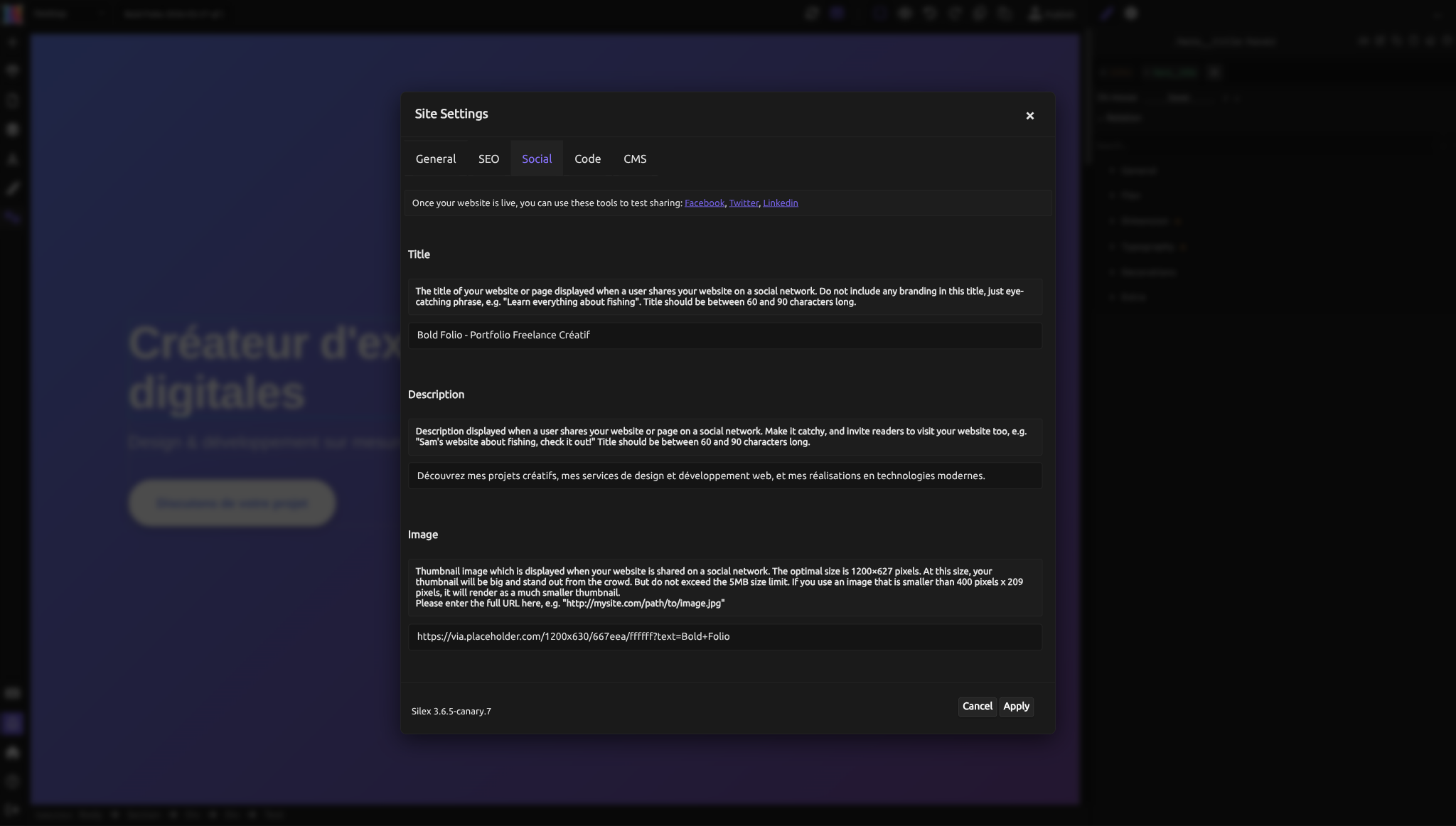
Title
The social title is displayed as the headline of the preview card. It appears in bold, usually above the description and below the image.
How to write a good social title
Write for attention, not for search engines. SEO titles include brand names and keywords. Social titles should make someone stop scrolling. "Learn Everything About Wheel Throwing" is more compelling than "Pottery Classes - Mountain Clay Studio".
Keep it between 60 and 90 characters. Platforms truncate differently, but this range works well across Facebook, LinkedIn, and Twitter.
Do not include branding. The platform already shows your domain name. Using the title for your brand name wastes space you could use to describe the content.
Compare your social title with your SEO title. They serve different audiences. Your SEO title (set in the SEO tab) targets someone actively searching. Your social title targets someone casually scrolling a feed. Adjust the tone accordingly.
Description
The social description appears below the title in the preview card. It provides context and a reason to click.
How to write a good social description
Make it a call to action or a teaser. "Sam's complete guide to glazing techniques, with video demos for every step" invites the click. "This is our website about pottery" does not.
Keep it between 60 and 90 characters. Some platforms show more, but this length ensures nothing critical gets cut.
Do not repeat the title. The title and description appear together. Use the description to add information the title did not cover.
Image
The social image is the single most important element of a shared link. It determines whether the preview card is large and eye-catching or small and ignorable.
Image requirements
Optimal size: 1200 x 627 pixels. At this size, Facebook, LinkedIn, and Twitter all display a large preview card. This is the aspect ratio you should target.
Minimum size: 400 x 209 pixels. Below this threshold, platforms render a much smaller thumbnail on the left side of the card instead of a large image above the text. The difference in visual impact is significant.
Maximum file size: 5 MB. Keep images well under this limit for fast loading. Aim for 200-500 KB using JPEG compression or optimized PNG.
Use the full URL. The image field requires an absolute URL, not a relative path. Enter the complete address: https://www.example.com/images/share-image.jpg. Platforms fetch this image from your server when someone shares the link, so relative paths will not resolve.
Tips for a good social image
- Design specifically for sharing. Do not reuse a random photo from your page. Create an image that looks good as a preview card with large text overlaid if needed.
- Avoid text-heavy images. Some platforms crop images slightly. Keep important content away from the edges.
- Use high contrast. Social feeds are noisy. A bright, clear image stands out against a wall of text posts.
- Test with different backgrounds. Facebook has a white feed background, Twitter has white or dark mode, LinkedIn is light gray. Make sure your image looks good on all of them.
Setting social sharing metadata
Site-wide defaults
- Open Site Settings (gear icon) > Social tab.
- Enter a Title -- something compelling that represents your site overall.
- Enter a Description -- a short pitch for your site.
- Enter an Image URL -- your best, most representative image at 1200x627.
- Click Apply.
Per-page overrides
- Open Page Settings for the page you want to customize.
- Go to the Social tab.
- Enter values specific to that page. Any field you leave empty falls back to the site-wide default.
- Click Apply.
Which pages need overrides? Any page someone might share directly: your homepage, blog posts, product pages, landing pages, and portfolio pieces. A "Terms of Service" page probably does not need a custom social image.
Testing your social cards
After publishing, use these tools to see exactly how your page will appear when shared:
- Facebook: Sharing Debugger -- enter your URL, see the preview, and clear Facebook's cache if you updated your tags.
- Twitter: Card Validator -- preview your Twitter card.
- LinkedIn: Post Inspector -- preview and refresh LinkedIn's cache.
These tools also show you any errors or warnings about your Open Graph tags.
Important: Social platforms cache your metadata aggressively. If you update your social title, description, or image, use these debugging tools to force a cache refresh. Otherwise, platforms may show your old metadata for hours or even days.
Social sharing vs. SEO
It is worth being explicit about the difference, because the Settings dialog has both an SEO tab and a Social tab with similar-looking fields.
| SEO (title, description) | Social (og:title, og:description, og:image) | |
|---|---|---|
| Where it appears | Search engine results, browser tabs | Social media preview cards |
| Audience | Someone actively searching | Someone scrolling a feed |
| Tone | Informative, keyword-aware | Attention-grabbing, conversational |
| Length | Title: ~70 chars. Description: 150-160 chars | Title: 60-90 chars. Description: 60-90 chars |
| Image | Not applicable (favicon only) | Critical -- 1200x627 recommended |
You can use the same text for both if it fits both contexts. But your click-through rates will be better if you tailor each to its audience.
Common mistakes
- No social image. Shared links without images get far fewer clicks. Always set at least a site-wide default image.
- Image too small. Below 400x209 pixels, platforms show a tiny thumbnail instead of a large preview. Use 1200x627.
- Relative image URL. Social platforms fetch the image from your server using the URL you provide. A relative path like
/images/share.jpgwill not work. Use the full URL:https://www.example.com/images/share.jpg. - Same metadata on every page. If all your pages share the same title and description, every shared link looks identical. Override per page for pages people are likely to share.
- Forgetting to clear the cache. After updating social metadata, use the debugging tools above to refresh the platform cache. Otherwise, old values may persist.
Advanced: Open Graph tags in HTML and Twitter Cards
What gets generated
When you fill in the Social tab and publish, the following meta tags are added to your page's <head>:
<meta property="og:title" content="Your Social Title">
<meta property="og:description" content="Your Social Description">
<meta property="og:image" content="https://www.example.com/image.jpg">
These are standard Open Graph protocol tags recognized by all major social platforms.
Twitter Cards
Twitter supports Open Graph as a fallback, but prefers its own twitter: meta tags. If you want full control over your Twitter card, add these in the Custom Code head editor:
<meta name="twitter:card" content="summary_large_image">
<meta name="twitter:title" content="Your Twitter Title">
<meta name="twitter:description" content="Your Twitter Description">
<meta name="twitter:image" content="https://www.example.com/image.jpg">
The summary_large_image card type displays a large image above the title and description. Without the twitter:card tag, Twitter defaults to summary, which shows a small square thumbnail.
Additional Open Graph tags
For more control, you can add extra OG tags through the Custom Code head editor:
<meta property="og:type" content="website">
<meta property="og:url" content="https://www.example.com/page">
<meta property="og:site_name" content="Your Site Name">
<meta property="og:locale" content="en_US">
These are optional but can improve how platforms display your content.
Pinterest-specific
Pinterest reads Open Graph tags but also supports a pinterest:description tag. More importantly, Pinterest respects a special meta tag that prevents people from pinning images from your site:
Add this in the Custom Code head editor if needed.
Quiz
Q1: You set a social image that is 300x150 pixels. What happens when someone shares your page on Facebook?
- A) Facebook rejects the image and shows no preview
- B) Facebook shows a small thumbnail to the left of the text instead of a large image above it
- C) Facebook stretches the image to fit the large preview card
Answer
B) Facebook shows a small thumbnail to the left of the text. Images below 400x209 pixels trigger the small card layout. Use 1200x627 for the large, attention-grabbing card.
Q2: You updated your social image yesterday, but when you share the link on LinkedIn, it still shows the old image. What should you do?
- A) Wait a few weeks for LinkedIn to update automatically
- B) Use the LinkedIn Post Inspector to clear the cache and fetch the new metadata
- C) Delete the old image from your server
Answer
B) Use the LinkedIn Post Inspector. Social platforms cache metadata aggressively. The debugging tools let you force a refresh so the new image appears immediately.
Q3: Your SEO title is "Handmade Ceramic Bowls & Mugs - Mountain Clay Studio". Should your social title be the same?
- A) Yes, consistency is important
- B) Not necessarily -- the social title should be more attention-grabbing, like "Beautiful bowls handmade on the pottery wheel"
- C) The social title should be shorter, like "Mountain Clay"
Answer
B) Not necessarily. SEO titles target people who are actively searching (informative, keyword-rich). Social titles target people scrolling a feed (attention-grabbing, conversational). Tailoring each to its context improves click-through rates.
Q4: You entered images/share.jpg in the social image field. The image does not appear in preview cards. Why?
- A) The image is too large
- B) Social platforms need a full URL starting with
https://, not a relative path - C) The image format is not supported
Answer
B) Social platforms need a full URL. They fetch the image from your server using the URL you provide. A relative path does not resolve because there is no base URL context. Use the complete address: https://www.example.com/images/share.jpg.
Q5: Which pages on your site should have custom social sharing overrides?
- A) Every single page, no exceptions
- B) Pages people are likely to share: homepage, blog posts, product pages, landing pages
- C) Only the homepage
Answer
B) Pages people are likely to share. These are the pages that will appear in social feeds. A Terms of Service page or a privacy policy rarely gets shared, so the site-wide default is fine for those.