Pages
Create and organize pages for your website.
Each page in Silex becomes a separate HTML file when published. Pages are the top-level containers for content — think of them as separate screens: a home page, an about page, a contact page. From the Pages panel on the left sidebar, you manage all pages: create, rename, delete, reorder, and switch between them.
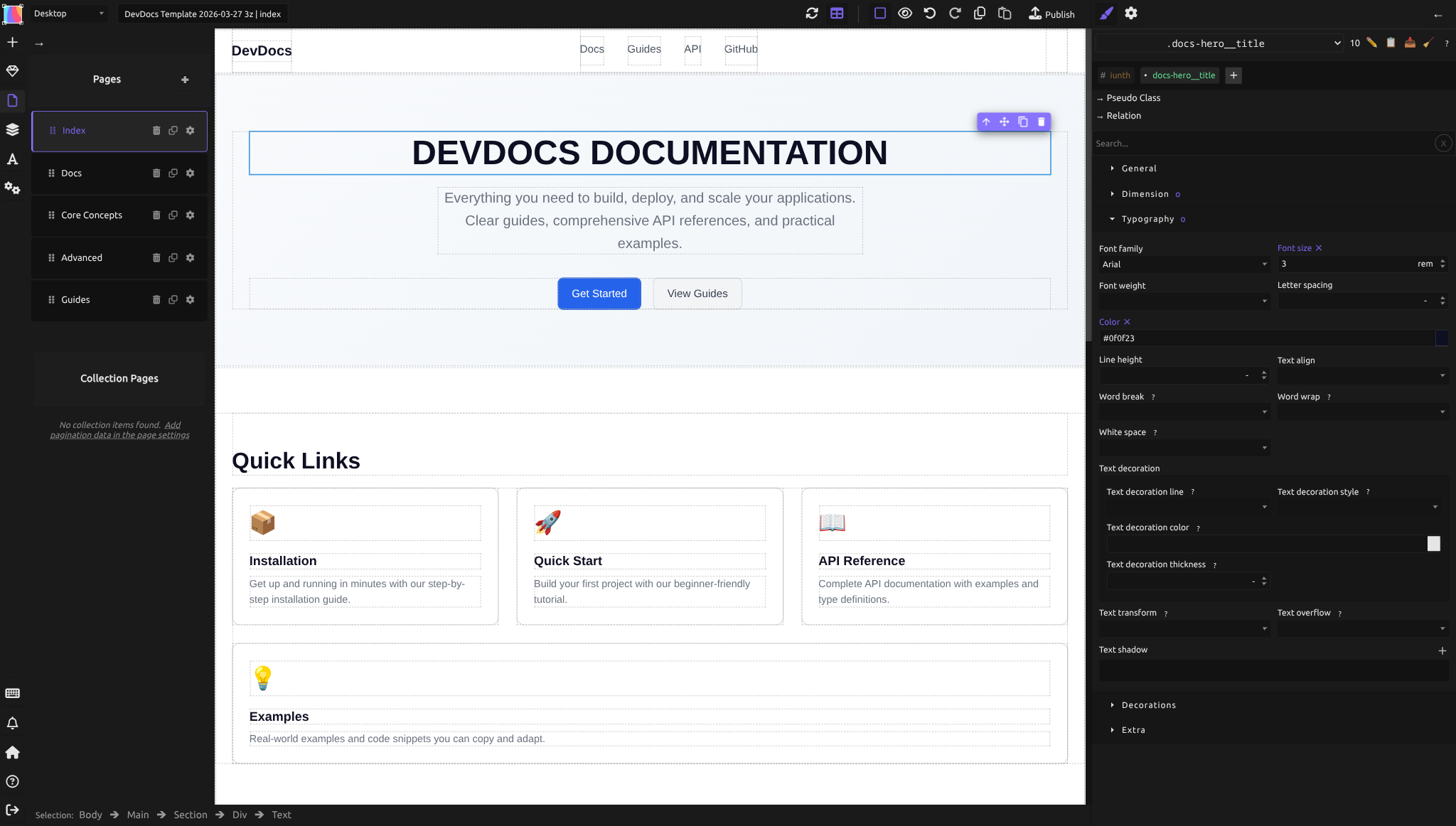
Two mental models to keep in mind:
- Page name = file name. A page named
aboutbecomes/about.html(or/about/depending on your hosting). The homepage is alwaysindex. - Each page is independent. Styles, content, and page-specific settings belong to one page only. To share a component across pages, use Symbols.
Note: Your homepage must be named
index. Web servers require this to serveyoursite.com/correctly. If you don't have anindexpage, visitors will see a 404 error. Internal links between pages must use relative paths starting with./— see the internal links section below.
Creating a page
To add a new page:
- In the left sidebar, click the Pages button (or press Shift+P)
- Click the + button at the top of the panel
- A new page is created with a default name
- The page is added to your Pages list and automatically selected
Page names become part of your URL. Use short, descriptive, lowercase names without spaces. Silex converts them: a page named "About Us" becomes /about-us/ when published. Good page names are simple: about, contact, services, blog.
Renaming a page
To change a page's name after creating it:
- In the Pages panel, click the gear icon (⚙) next to the page name
- In the settings dialog, change the Page name field
- Click Apply
Silex automatically updates all internal links (links created using the Page dropdown in the Link trait) pointing to the old page name — you don't need to fix them manually. However, if you used a hardcoded link like ./old-name, you'll need to update it to the new name.
Deleting a page
To remove a page:
- In the Pages panel, click the delete icon (🗑) next to the page name
- Confirm the deletion
You cannot delete your only page — every site must have at least one page. If the deleted page was your homepage (named index), Silex automatically designates the first remaining page as index.
Cloning a page
To duplicate a page:
- In the Pages panel, click the clone icon (overlapping squares) next to the page
- Silex creates an exact copy with a "copy" suffix (e.g., "about copy")
- The cloned page includes all the layout, components, styles, and content of the original
After cloning, rename the new page and update its content. This is faster than building a new page from scratch when you want similar layouts.
Reordering pages
Drag pages in the Pages panel to reorder them:
- Hover over a page — a grip handle (vertical dots) appears on the left
- Click and drag the page to a new position
- Release to drop it
The order in the Pages panel is for your convenience in the editor — it doesn't affect the published site's URL structure or navigation. Reordering is just organizational.
The homepage: always named index
Your homepage is the page served when someone visits yoursite.com/. Web servers require an index.html file at the root. If your homepage is named anything else, visitors will see a 404 error.
Ensure your homepage is named index:
- When you create your first page, name it
index - If you rename your homepage to something else, immediately rename another page to
indexto replace it - You can only have one
indexpage
Page settings
Each page has its own configuration for metadata, SEO, social sharing, and custom code. Page-specific settings override the global site settings when published.
To access page settings:
- In the Pages panel, click the gear icon (⚙) next to the page name
- The page settings dialog opens with these tabs:
- Name — page name and optional custom permalink
- SEO — title (70 chars), description (150-160 chars), per-page overrides of site-wide settings
- Social — Open Graph title, description, image for social sharing previews
- Code — custom
<head>HTML (analytics scripts, fonts, tracking pixels, etc.)
Example: your homepage might have the title "Welcome to My Studio", while your about page has "About Me". Each page's title, description, and image appear when the page is shared on social media or indexed by search engines.
Internal links: linking to other pages
To link from one page to another on your site, use relative paths starting with ./.
When adding a link:
- Select the element (button, text, image, or container) that should be clickable
- In the right panel, click the gear icon to open Element settings
- Find the Link section and set the Type dropdown to Page
- Select the target page from the list
Silex automatically creates the correct link format. For example, linking to your "about" page produces ./about. This relative path works regardless of your hosting domain or subdirectory.
Never hardcode absolute paths like /about or https://yoursite.com/about — they break when the site moves to a different domain or hosting. Always use the Page dropdown to generate relative links.
When you rename a page, all links created via the Page dropdown update automatically. Hardcoded paths do not update.
Practical example: launching a three-page portfolio
You're building a portfolio site with: homepage, work samples, and contact.
- Set up pages:
- Create/rename your first page to
index(homepage) - Add a page named
work -
Add a page named
contact -
Add navigation to the homepage:
- Create a Div with three text links: "Home", "Work", "Contact"
- Select "Home" text, set Link to
Page: index→./index - Select "Work" text, set Link to
Page: work→./work -
Select "Contact" text, set Link to
Page: contact→./contact -
Reuse navigation across pages:
- Instead of copying navigation to each page, convert the nav Div to a Symbol
- When you edit the Symbol, changes appear on all pages automatically
-
See Symbols for details
-
Configure page settings:
- For the homepage: set SEO title to "Portfolio", description to "Showcasing my work"
- For work page: set SEO title to "My Work", description to "Selected projects and case studies"
-
For contact page: set SEO title to "Get in Touch", description to "Contact form and links"
-
Publish:
- All links work across your site
- Search engines and social media see the correct page titles and descriptions
- Visitors can navigate seamlessly between pages
Common mistakes
- Not naming your homepage
index. Without anindexpage, the root URL shows a 404. Create or rename a page toindexfirst. - Using absolute paths for internal links. Write
./about, not/aboutorhttps://yoursite.com/about. Relative paths work everywhere. - Hardcoding link paths instead of using the Page dropdown. Typing
./aboutmanually won't update if you rename the page. Use Page dropdown so Silex updates links automatically. - Trying to delete your only page. Create a new page first, then delete the old one.
- Expecting global changes from one page. Page-specific styles and content don't affect other pages. Use Symbols or CSS Variables if you want shared design.
Learn more
- Page structure — semantic HTML and proper heading hierarchy within each page
- Symbols — shared components across pages with auto-updating
- Site settings — global site name, language, favicon
- SEO — per-page title, description, and best practices
- Social sharing — Open Graph and social preview images
- Publishing — converting pages to published HTML files
Advanced: page internals
Each Silex page is a GrapesJS Page object. Pages are stored in your project file and rendered as separate HTML files at publish time. The page's main component is the <body> element — everything you see on the canvas lives inside it.
The Pages panel uses these commands internally: pages:add, pages:remove, pages:clone, pages:select, pages:rename, pages:list. These commands are available to plugins and custom code.
When you clone a page, Silex performs a deep clone of the body component and all its children, then copies custom page properties (excluding internal identifiers). Associated styles carry over to the clone.
Quiz
Q1: You published your site, but visitors see a 404 error at your domain root. You have three pages: home, about, and contact. What's the problem?
- A) Your site isn't configured on the hosting provider
- B) Your homepage is named
homeinstead ofindex - C) The
aboutpage is missing
Answer
B) Your homepage is named home instead of index — web servers look for index.html at the root. Rename a page to index.
Q2: You're creating an internal link from your home page to your contact page. What should the link be?
- A)
https://yoursite.com/contact - B)
/contact - C)
./contact
Answer
C) ./contact — use relative paths. They work on any domain, subdomain, or local hosting. Use the Page dropdown in the Link trait to generate these automatically.
Q3: You renamed a page from "portfolio" to "work" using the page settings. Do the internal links to that page break?
- A) Yes, you must manually update every link
- B) No, Silex automatically updates links created via the Page dropdown
- C) Only if the page is a Symbol
Answer
B) No, Silex automatically updates links created via the Page dropdown — this is why using the Page dropdown (not hardcoded paths) is important.
Q4: You want a new "services" page with the same layout as your "work" page. What's the fastest way?
- A) Recreate the layout from scratch on the new page
- B) Copy elements from work to services one by one
- C) Clone the work page, then rename it to services and update the content
Answer
C) Clone the work page, then rename it to services and update the content — cloning preserves all layout, styles, and components.
Q5: You try to delete your only page, but the delete button is disabled. What do you need to do?
- A) Create a new page first, then delete the old one
- B) Contact your hosting provider
- C) Clear your browser cache
Answer
A) Create a new page first, then delete the old one — Silex requires at least one page to exist.