Images et médias accessibles
Les images, vidéos et fichiers audio enrichissent votre contenu -- mais seulement si tout le monde peut accéder à l'information qu'ils portent. Un lecteur d'écran ne peut pas voir une photo. Une personne sourde ne peut pas entendre les dialogues d'une vidéo. Une animation peut déclencher une crise d'épilepsie.
Deux principes directeurs :
- Chaque information visuelle a besoin d'un équivalent textuel. Si l'image communique quelque chose, décrivez-la. Si ce n'est pas le cas, marquez-la comme décorative.
- Donnez aux utilisateurs le contrôle de la lecture des médias. Pas de lecture automatique avec son, pas de contenu clignotant, et fournissez toujours des commandes de pause.
Texte alternatif pour les images
L'attribut alt fournit une description textuelle d'une image. Les lecteurs d'écran l'annoncent, les moteurs de recherche l'indexent, et les navigateurs l'affichent quand l'image ne se charge pas.
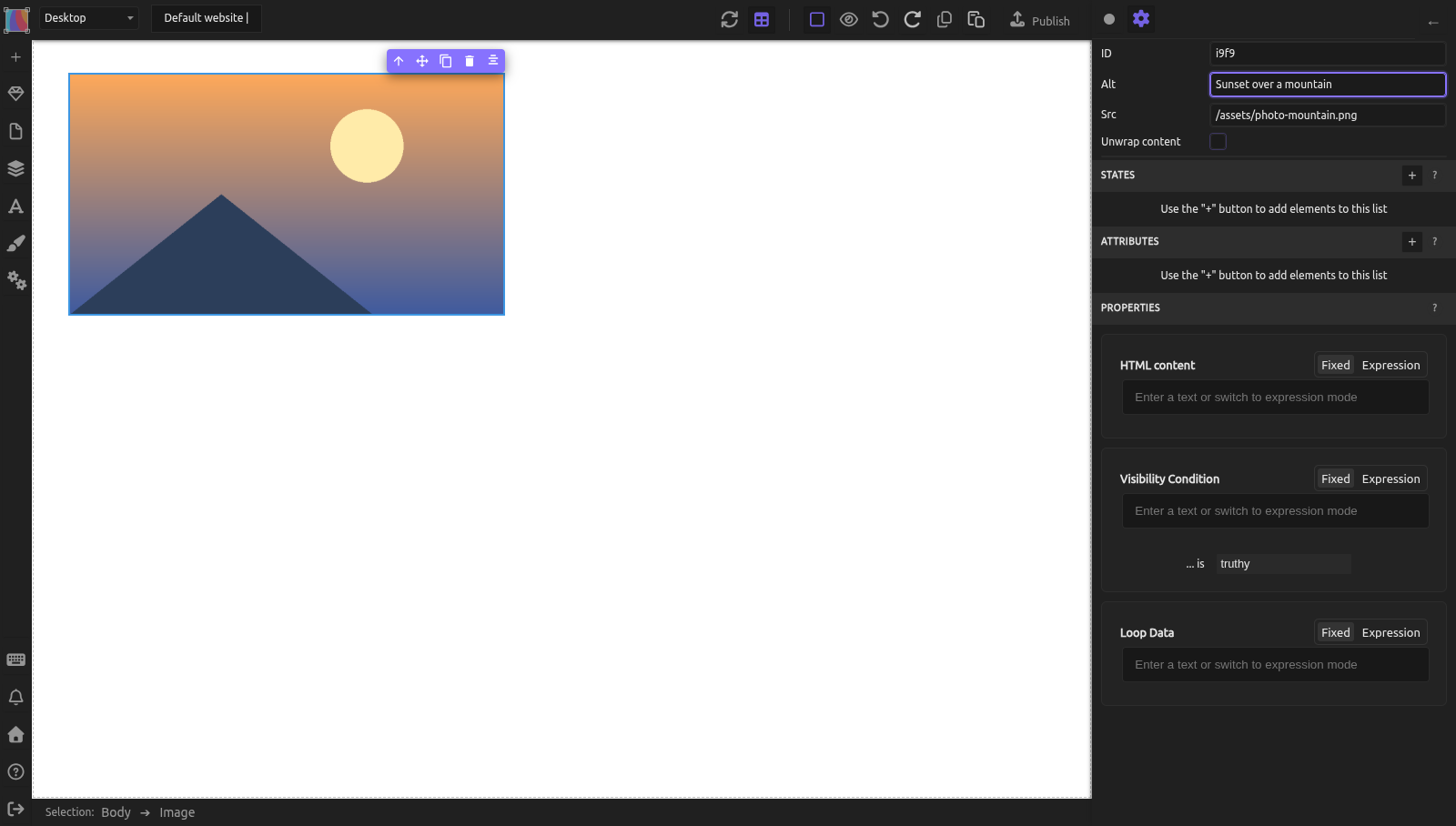
Pour définir le texte alternatif dans Silex :
- Sélectionnez l'image
- Dans les réglages de l'élément (icône engrenage en haut du panneau de droite), cliquez dans le champ Alt
- Rédigez une phrase courte et descriptive
Rédiger un bon texte alternatif
Décrivez ce que l'image communique, pas ce qu'elle contient littéralement.
| Image | Mauvais texte alternatif | Bon texte alternatif |
|---|---|---|
| Photo d'équipe sur une page À propos | « image » | « Cinq membres de l'équipe au bureau, souriants » |
| Capture d'écran de l'éditeur | « capture d'écran » | « L'éditeur Silex affichant le panneau Style avec les contrôles de typographie » |
| Logo en haut de la page | « logo » | « Silex » (c'est le nom de la marque que le logo communique) |
| Fond dégradé décoratif | N'importe quel texte | Alt vide (alt="") -- voir Images décoratives |
Règles :
- Restez sous 125 caractères -- concis mais précis
- Ne commencez pas par « image de » ou « photo de » -- les lecteurs d'écran annoncent déjà « image »
- Incluez le texte visible dans l'image (panneaux, boutons, étiquettes)
- Si l'image est un lien, le texte alternatif doit décrire la destination du lien, pas l'image
Images décoratives
Les images qui n'ajoutent aucune information -- textures de fond, séparateurs décoratifs, ornements visuels -- doivent avoir un texte alternatif vide (alt=""). Cela indique aux lecteurs d'écran de les ignorer entièrement.
Un attribut alt vide et un attribut alt absent sont différents : un alt absent peut pousser les lecteurs d'écran à lire le nom du fichier. Aujourd'hui dans Silex, laisser le champ Alt vide n'écrit aucun attribut alt, et un alt vide ajouté dans la section Attributes est supprimé à la publication. Pour une image décorative :
- préférez une Background image dans le panneau Style (secteur Backgrounds & borders) : c'est du CSS, pas un
<img>, il n'y a pas d'alt à donner ; - ou, pour un bloc Image, laissez Alt vide et ajoutez l'attribut
aria-hidden=true(réglages de l'élément, section Attributes, +), que les lecteurs d'écran ignorent.
Images complexes
Les graphiques, diagrammes, infographies et visualisations de données nécessitent plus qu'un court texte alternatif. Fournissez :
- Un bref
altdécrivant le type d'image et le sujet (« Graphique à barres comparant les ventes par trimestre ») - Une description plus longue à proximité dans le texte de la page, ou liée depuis l'image
Pour un graphique, les données complètes doivent être disponibles sous forme de tableau ailleurs sur la page ou derrière un lien.
Accessibilité des vidéos
Sous-titres et légendes
Les vidéos contenant de la parole ont besoin de sous-titres. Les sous-titres aident les personnes sourdes et malentendantes, mais aussi les utilisateurs dans des environnements bruyants, les non-natifs, et quiconque préfère lire.
Le bloc Video de Silex n'a pas de réglage de sous-titres. Ses réglages proposent un Provider : HTML5 Source (un fichier vidéo), YouTube, YouTube (sans cookie) ou Vimeo.
- YouTube ou Vimeo : ajoutez les sous-titres sur la plateforme, avec ses outils de sous-titrage. Le bloc Video n'a besoin que de l'identifiant (Video ID).
- Un fichier vidéo : utilisez un bloc Code personnalisé à la place du bloc Video, avec un élément
<track>qui pointe vers un fichier de sous-titres WebVTT :
<video controls src="assets/talk.mp4">
  <track kind="captions" src="assets/talk.en.vtt" srclang="en" label="English" default>
</video>
Transcriptions
Fournissez une transcription textuelle pour tout contenu vidéo ou audio. Une transcription est une version textuelle complète du contenu parlé, placée sur la page sous le média ou liée à proximité.
Pas de lecture automatique avec son
Les médias à lecture automatique avec son sont déroutants pour les utilisateurs de lecteur d'écran (l'audio de leur lecteur d'écran entre en concurrence avec celui de la vidéo) et agaçants pour tout le monde.
Si vous utilisez la lecture automatique sur une vidéo, elle doit être muette par défaut. Fournissez des commandes pour que les utilisateurs puissent activer le son quand ils sont prêts. Dans Silex, sélectionnez le bloc Video et, dans les réglages de l'élément (icône engrenage), cochez Autoplay avec Muted, et laissez Controls coché (il l'est par défaut). Loop est là aussi. Avec le provider YouTube, on retrouve les mêmes cases Autoplay, Loop, Controls et Muted.

Accessibilité de l'audio
Le contenu audio (podcasts, extraits sonores) a besoin d'une transcription. Placez-la sur la même page ou liez-la directement sous le lecteur audio.
Animation et mouvement
Contenu clignotant
Un contenu qui clignote plus de trois fois par seconde peut déclencher des crises chez les personnes atteintes d'épilepsie photosensible. C'est une exigence WCAG de niveau A -- le niveau de priorité le plus élevé.
Ne créez pas de contenu qui clignote rapidement. Cela inclut les GIF animés, les vidéos en lecture automatique et les animations CSS avec des changements de couleur rapides.
Mouvement réduit
Certains utilisateurs ressentent des nausées ou une désorientation face aux animations. CSS fournit prefers-reduced-motion, une media query qui détecte quand les utilisateurs ont demandé un mouvement réduit dans leur système d'exploitation.
Si vous ajoutez des animations CSS via Code personnalisé, encadrez-les :
@media (prefers-reduced-motion: reduce) {
  * {
    animation-duration: 0.01ms !important;
    transition-duration: 0.01ms !important;
  }
}
Cela désactive les animations pour les utilisateurs qui le demandent tout en les conservant pour les autres.
Exemple pratique : section hero accessible avec image et vidéo
Vous construisez une section hero avec une image de fond et une vidéo intégrée.
- Image de fond : elle est décorative (le texte en surimpression porte le message). Mettez-la en Background image du hero dans le panneau Style, elle n'a alors pas besoin d'alt (voir Images décoratives).
- Vidéo : intégrée depuis YouTube avec les sous-titres activés.
- Glissez un bloc Video, réglez son Provider sur
YouTubeet collez l'identifiant de la vidéo (Video ID) dans les réglages de l'élément - Assurez-vous que la vidéo YouTube a des sous-titres téléversés
- Ajoutez un lien en dessous : « Lire la transcription » pointant vers une section de transcription sur la page
- Texte en surimpression : assurez un contraste suffisant entre le texte et l'image derrière. Ajoutez un calque sombre si nécessaire (voir Couleurs et arrière-plans).
Erreurs courantes
- Texte alternatif manquant. Chaque
<img>a besoin d'un attributalt-- soit un texte descriptif, soit vide pour les images décoratives. - Un texte alternatif qui dit « image » ou le nom du fichier.
IMG_4392.jpgn'apprend rien à l'utilisateur. Décrivez ce que l'image communique. - Vidéo en lecture automatique avec son. Rendez-la muette par défaut et fournissez des commandes.
- Pas de sous-titres sur une vidéo avec parole. Les sous-titres ne sont pas optionnels -- ils sont requis pour la conformité AA.
- Pas de transcription pour le contenu audio. Les podcasts et extraits sonores ont besoin d'équivalents textuels.
- GIF animés qui clignotent rapidement. Vérifiez la cadence d'images. S'il clignote plus de 3 fois par seconde, retirez-le.
Pour aller plus loin
- MDN : Texte alternatif -- référence de l'attribut alt
- MDN : L'élément track -- ajouter des sous-titres à une vidéo
- MDN : prefers-reduced-motion -- respecter les préférences de mouvement
- WebAIM : Alternative Text -- guide complet du texte alternatif
- Images et médias -- ajouter des images et vidéos dans Silex
- Couleurs et arrière-plans -- calques sombres pour le contraste du texte sur les images
Référence : résumé des exigences WCAG sur les médias
| Critère | Niveau | Exigence |
|---|---|---|
| 1.1.1 Contenu non textuel | A | Toutes les images ont un texte alternatif (ou sont marquées décoratives) |
| 1.2.1 Contenu seulement audio ou seulement vidéo | A | Fournir une transcription pour le seul audio, une transcription ou audiodescription pour la seule vidéo |
| 1.2.2 Sous-titres (préenregistrés) | A | Sous-titres sur toute vidéo préenregistrée avec audio |
| 1.2.3 Audiodescription | A | Audiodescription ou alternative textuelle pour la vidéo préenregistrée |
| 1.2.5 Audiodescription (préenregistrée) | AA | Audiodescription pour toute vidéo préenregistrée |
| 2.3.1 Trois flashs ou moins | A | Aucun contenu ne clignote plus de 3 fois par seconde |
Quiz
Q1 : Une image montre un graphique à barres des ventes trimestrielles. Quel devrait être le texte alternatif ?
- A) « graphique »
- B) « Graphique à barres montrant T1 à 50k, T2 à 75k, T3 à 60k, T4 à 90k »
- C) « Graphique à barres comparant les ventes trimestrielles -- voir le tableau de données ci-dessous »
Réponse
C) « Graphique à barres comparant les ventes trimestrielles -- voir le tableau de données ci-dessous » -- le texte alternatif doit être concis. Pour les images complexes, fournissez une brève description et pointez vers un équivalent textuel complet (un tableau de données) ailleurs sur la page.
Q2 : Un séparateur en vague décoratif sépare deux sections. Quel devrait être son texte alternatif ?
- A) « séparateur en vague »
- B) « image décorative »
- C) Vide (
alt="")
Réponse
C) Vide (alt="") -- les images décoratives qui n'ajoutent aucune information doivent avoir un texte alternatif vide. Cela indique aux lecteurs d'écran de les ignorer.
Q3 : Votre section hero contient une vidéo en lecture automatique. Un utilisateur de lecteur d'écran visite la page et entend en même temps son lecteur d'écran et l'audio de la vidéo. Qu'est-ce qui a mal tourné ?
- A) La vidéo devrait être muette par défaut
- B) La vidéo a besoin de sous-titres
- C) La vidéo devrait être plus petite
Réponse
A) La vidéo devrait être muette par défaut -- les médias en lecture automatique avec son interfèrent avec les lecteurs d'écran. Rendez toujours les vidéos en lecture automatique muettes et fournissez des commandes pour que l'utilisateur active le son.