Binding data
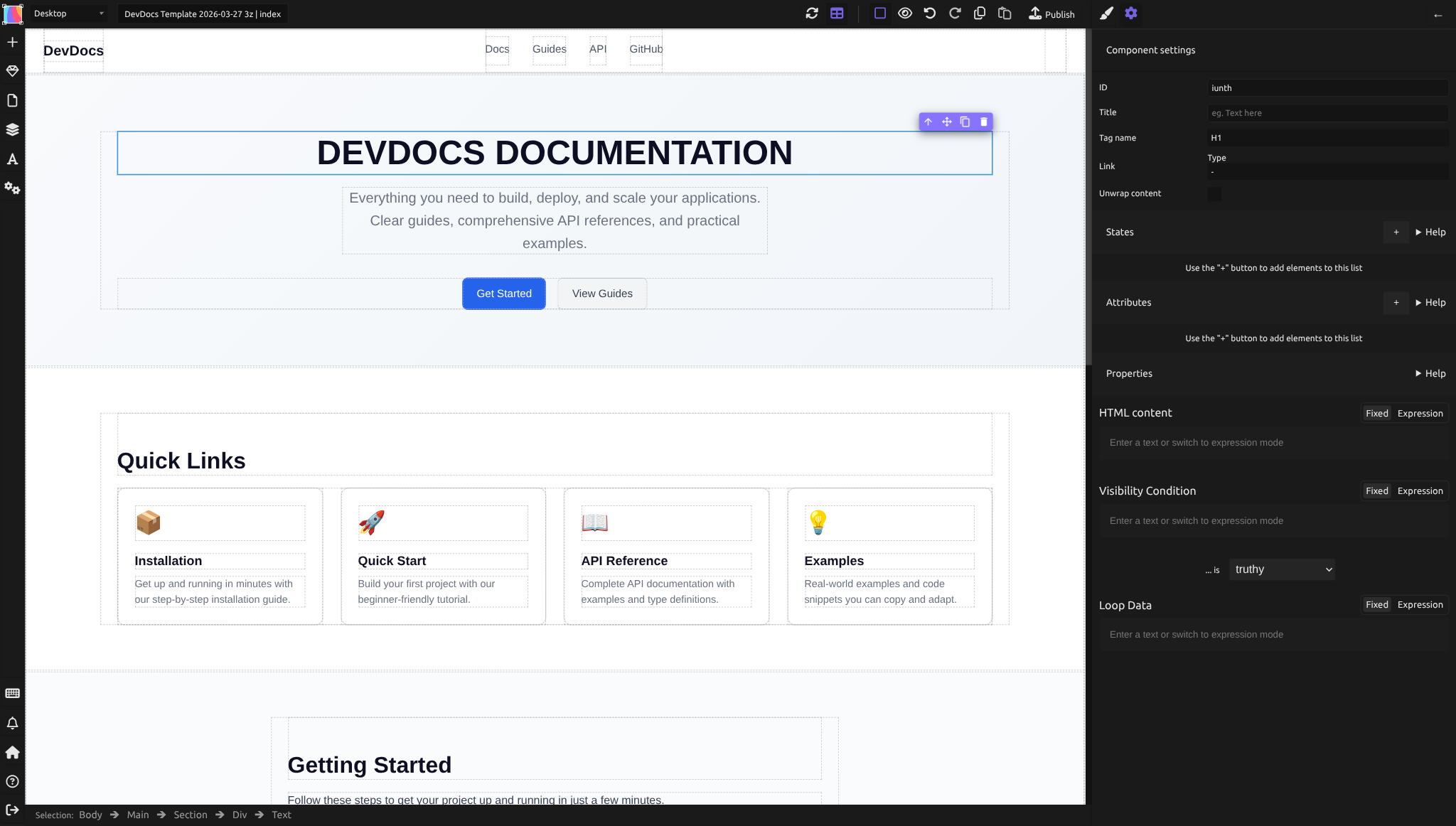
Once you've connected a data source, you show its data in your elements. Select an element, open its Element settings (gear icon at the top of the right panel), and fill a field with an expression instead of a fixed value. The canvas shows the real data from your API.
Use it to show the title of a post in a text, the picture of a post in an image, or a link to the post.
Where to bind data
Select an element and open the Element settings (gear icon). Three sections take expressions:
- Properties: HTML content (the text inside the element), Visibility Condition (see Conditions) and Loop Data (see Loops and lists)
- Attributes: the HTML attributes of the element, like
href,srcoralt - States: values you name yourself, to share them with the elements inside this one
Every field has two buttons: Fixed for a value you type, Expression to build the value from your data. Changes apply at once.
Building an expression
An expression is a chain of tokens that you pick one after the other in a menu. For example, to get the title of your first post:
- Click Expression next to the field, for example HTML content, then +. The menu lists what your data source offers, for example
posts - Pick
posts. If your API wraps the list, click + again and pick the field that holds it, likenodesordata - Click + again. After a list, the menu shows the filters that work on it, like
first,lastorslice. Pickfirstto get one post - Click + again and pick
title
The expression is now posts → first → title (or posts → nodes → first → title). Below the field, Silex shows the value it gives with your data.
In the menu, each field shows its type in brackets, for example title (string). {} means an object with its own fields, [] means a list.
To change a token, click it and pick another one in its menu. To start over, click the × next to the field name.
Showing data in a text
To show the title of a post:
- From the Blocks panel, drag a Text onto the page
- Open the Element settings (gear icon)
- In Properties, click Expression next to HTML content
- Build
posts → first → title, as above
The text on the canvas shows the real title from your API.
Binding HTML attributes
A fixed attribute (no data needed):
- Select the element
- In the Element settings (gear icon), find Attributes and click +
- Type the attribute name, for example
aria-label, and confirm - Type its value, for example
Primary navigation
This is useful for accessibility attributes. See ARIA attributes and roles for common cases.
An attribute from your data:
- Select the element
- In the Element settings (gear icon), find Attributes and click +
- Type the attribute name, for example
src, and confirm - Click Expression and build the value, for example
posts → first → featured_image → url
States
A state is a value that you name yourself. The elements inside it can use it in their expressions. Use it to build a value once, for example posts → first, and reuse it in several elements inside.
- Select the element that contains the others, for example a Container. Give it a name in the Layers panel: double-click its name and type, for example,
Latest post - In the Element settings (gear icon), find States and click +
- Type a name, for example
post, and confirm - Click Expression and build
posts → first
In the elements inside Latest post, click + in an expression: the menu has a group named after the container, Latest post's states. Pick post there, then title.
Practical example: the latest post
Scenario: on your home page, you want to show the title, the excerpt and the picture of your latest post.
The field names below (title, excerpt, featured_image) are examples. Your CMS has its own: when you click + in an expression, the menu lists the real fields, pick the closest ones.
- From the Blocks panel, drag a Text onto the page for the title. Open the Element settings (gear icon) and set its Tag name to H2
- In Properties, click Expression next to HTML content. Click + and pick
posts, then the field that holds the list if your API wraps it (likenodesordata), thenfirst, thentitle - Drag a second Text below it for the excerpt. Do the same as step 2, but pick
excerptat the end - Drag an Image below it. In the Element settings, find Attributes and click +. Type
srcand confirm. Click Expression, then buildposts(andnodesordataif needed),first,featured_image,url - Still on the image, add a second attribute the same way: type
alt, and buildposts(andnodesordataif needed),first,title
The three elements show the first post of the list. To show the latest post, the list must be sorted with the newest post first: check this in your CMS, or see Filters.
Field names depend on your CMS: in WordPress, for example, the list is posts → nodes and the image is featuredImage → node → sourceUrl.
To show a list of posts instead of one, see Loops and lists.
Data preview
The canvas shows your data while the data preview is on: table icon in the top bar (Enable / Disable data source preview, Ctrl+Alt+V). If you changed content in your CMS and the canvas does not show it yet, click Refresh data sources, next to it (Ctrl+Alt+R). Both buttons are described in Data preview.
Learn more
- Expressions — understanding tokens and chains
- Loops and lists — repeating an element for each item of a list
- Conditions — showing or hiding an element depending on your data
- Filters — reference of all available data transformation filters
Quiz
Q1: You want to show the title of a post in a Text. Which field of the Element settings do you fill?
- A) A new State named
title - B) HTML content
- C) A new attribute named
content
Answer
B) HTML content: it holds the text inside the element. A state only shows something if another expression uses it.
Q2: You want to show the picture of a post in an Image, with a text alternative. How many attributes do you add?
- A) One:
src - B) Two:
srcfor the picture andaltfor the text alternative - C) Three:
src,altandtitle
Answer
B) Two: src with the URL of the picture, and alt with a text that describes it.
Q3: You built an expression in HTML content, but the canvas does not show your data. What do you check first?
- A) That the data preview is on (table icon in the top bar,
Ctrl+Alt+V) - B) That the element has a name in the Layers panel
- C) That the page is published
Answer
A): the canvas shows your data only while the data preview is on.
Q4: Three elements inside a Container all start their expression with posts → first. How do you build this value only once?
- A) Add a State to the Container, with the expression
posts → first, and use it in the three elements - B) Put
posts → firstin the HTML content of the Container - C) Put
posts → firstin the Loop Data of the Container
Answer
A): a state is shared with the elements inside. In their + menu, you find it in the group named after the Container. Loop Data would repeat the Container, which is not what you want here.
Q5: In the + menu, you see author after posts → first, with {} in its type. What do you get if you stop there?
- A) A text (the author's name)
- B) An object (the author, with its own fields like
name) - C) A list of authors
Answer
B) An object: {} means an object with its own fields. To get the author's name, click + again and pick name: posts → first → author → name.